
Adding subscriptions to a Shopify store usually comes with a bill. Most subscription apps charge a monthly fee, a share of each renewal, or both. For a small store selling coffee, supplements or refills, that cost can arrive before the subscription revenue does.
Supr Bundle & Subscription App, made by Super Simple, takes the opposite approach. When we checked on 15 October 2026, its Shopify App Store listing showed a single Free plan. The developer says there are no usage fees, no transaction fees and no locked features. The app launched in January 2023, carries the Built for Shopify badge and had a 5.0 rating from 293 reviews.
So the question we wanted to answer was: can a free app give a store a proper subscription setup, with bundles on top, or does “free” mean cutting corners?
We installed it on Blinto’s Shopify development store in October 2026, created a subscription offer, checked it on a live product page and started the customer portal setup. Our short answer: the setup is clean, the offer builder is clear, and nothing we touched was locked behind a plan. The trade-offs are a manual step to switch on the customer portal, an admin that is only in English, and no paid tier you could fall back on if the free model changes.
Key Takeaways
- Best fit: Small and growing stores that want subscribe-and-save, bundles or both, without a monthly fee or a share of renewals.
- Genuinely free: One Free plan, with no transaction fees or subscriber limits listed. Applying an offer to all products was available to us at no cost.
- Clear offer builder: Three offer types and six subscription templates, with a live widget preview next to the settings.
- Main limitation: The customer portal is not switched on by the app. You add it yourself in Shopify’s checkout and accounts editor.
- Watch for: The app admin is English only, subscriptions need a supported payment gateway, and the recommended portal needs Shopify’s new customer accounts.
- Our scope: We did not place a subscription order, run a renewal, test the portal as a subscriber, build a bundle or contact support.
Our Verdict
Supr Bundle & Subscription App is a strong choice for a store that wants to start selling subscriptions without paying for the privilege.
The best part of our test was how quickly we went from install to a live offer. A short checklist turns on the storefront widget, the offer builder starts from plain-language templates, and the preview updates as you work. Within a few screens, our test product showed a Subscribe & Save option with a 10% saving and recurring purchase consent text under the buttons.
The trade-offs: the customer portal needs a manual step outside the app, and we did not get as far as billing, retries or the subscriber experience. And because the app is free, there is no paid plan with extra guarantees.
What Supr Bundle & Subscription App Offers
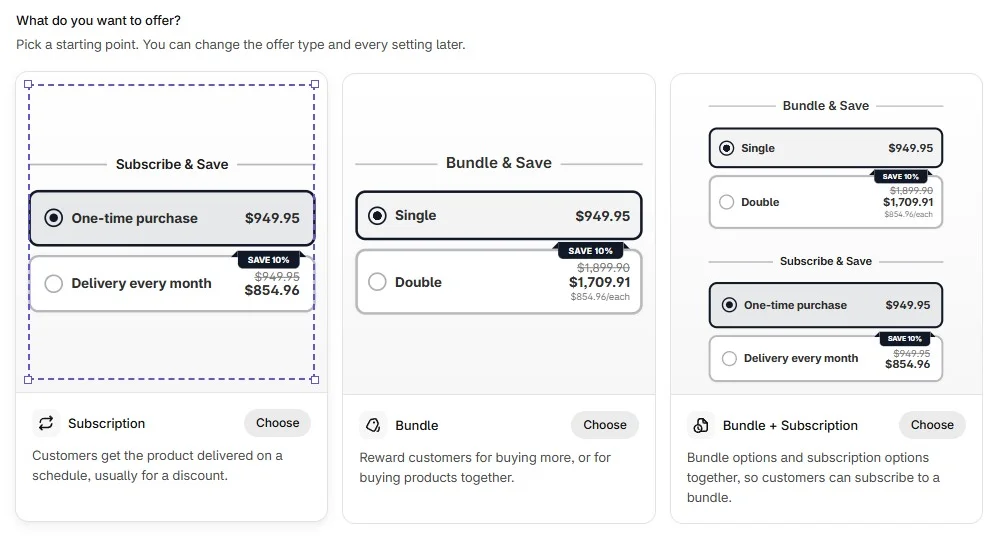
Supr puts subscriptions and bundles in one app. Every offer starts from the same screen, with three types:
- Subscription: the product is delivered on a schedule, usually at a discount.
- Bundle: a reward for buying more, or for buying products together.
- Bundle + Subscription: bundle options and subscription options together, so customers can subscribe to a bundle.
Inside Shopify admin, the app menu has Offers, Subscriptions, Design, Grow, Analytics, Settings and Feature requests.
According to the listing and the developer, the app also covers quantity breaks, BOGO, tiered pricing, mix-and-match bundles, prepaid and replenishment plans, automatic retries for failed payments, loyalty discounts that grow the longer a customer stays subscribed, cancellation flows with counter-offers, and migration from other subscription apps. The listing says it works with Shopify Checkout, customer accounts, Shopify POS, Shopify Flow, Klaviyo and Omnisend. We did not test these.
What We Tested
We installed Supr Bundle & Subscription App on Blinto Dev, a Shopify development store we use for testing, on the Free plan.
We worked through:
- the dashboard setup checklist and turning on the storefront widget
- creating and publishing a Standard subscription offer for all products
- the subscription templates and the offer editor
- the Design screen for the widget
- the Analytics screen
- the widget on a live product page
- the first part of the customer portal setup in Shopify’s checkout and accounts editor
We did not place a subscription order or trigger a renewal, so nothing reached the Subscriptions list. We did not log in as a subscriber to use the portal, create a bundle, open the Grow or Settings screens, connect Klaviyo or Flow, try a migration or contact support.
Setup: From Install to a Live Offer
The app opens on a dashboard titled “Your store is almost ready”, with a short checklist. The first step, Enable widget, turns on the app in your theme. After one click, a “Widget enabled” message appeared, and the Storefront widget status further down the page changed from Action needed to Live.
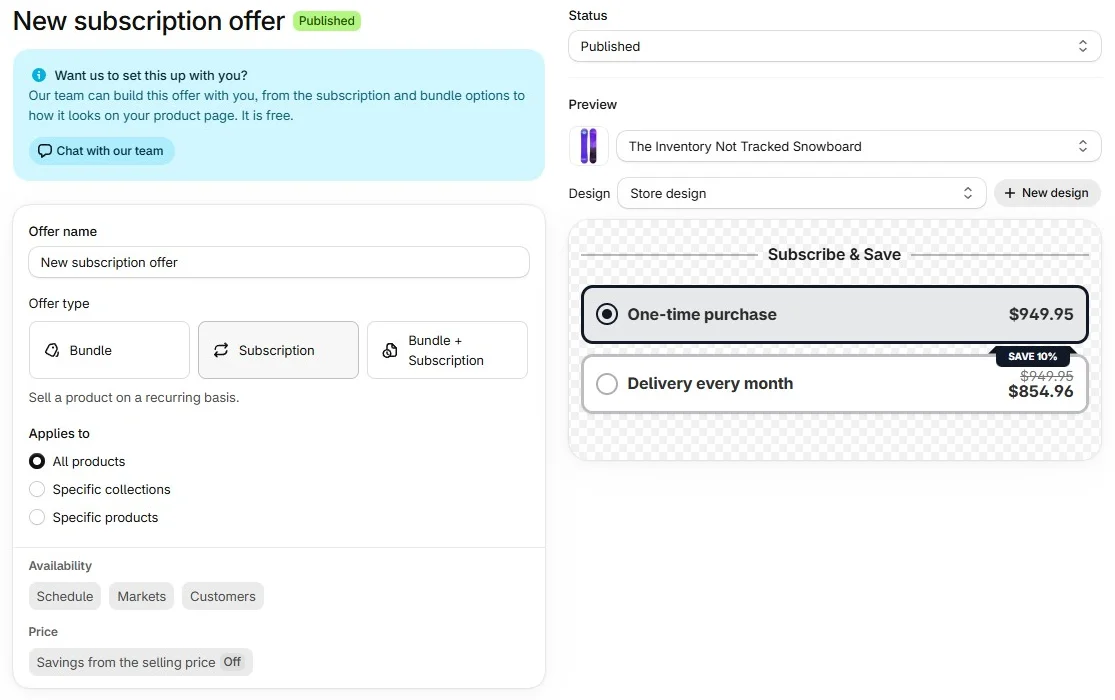
The second step, Create offer, opens the offer builder. After choosing Subscription, you pick a starting template:
- Standard: delivered on a schedule, usually for a discount.
- Free trial: the first order free or discounted, then the usual price.
- Starter, then refills: a starter product once, then its refill.
- Rotating products: each order ships the next product in a list.
- Subscription box: a new selection every week or month, revealed or kept a mystery.
- Gift subscription: paid once for a set number of deliveries to someone else.
We chose Standard. The editor puts everything on one page: offer name, offer type, which products it applies to (all products, specific collections or specific products), availability by schedule, market or customer, and the subscription options below. The preview on the right shows the widget as customers will see it. Our offer defaulted to a monthly delivery with 10% off. We kept that, set it to all products and saved it as Published.
The help docs list more controls for each subscription option than we tried. The discount can be a percentage, an amount off or a fixed price, and it can change after a set number of orders. You can also cap active subscriptions per option, per product or per customer, set a minimum number of orders before a customer can cancel or pause, and sell in fixed multiples.
Applying an offer to every product at no cost is worth noting. Some subscription apps we have reviewed keep that option for higher plans.
Both the offer editor and the Design screen also carry a banner offering to build the offer or fix the widget for you, free. We did not take up the offer, but it matches what many merchants say about the support team.
The Widget on Your Product Page
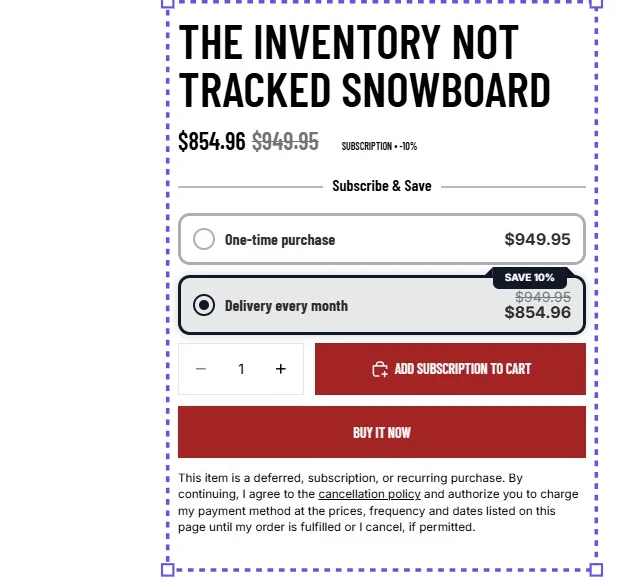
On our test product page, the widget appeared under the product title as a Subscribe & Save block with two choices: One-time purchase at the full price and Delivery every month with a Save 10% badge and the discounted price. With the subscription selected, the price at the top showed the discounted amount with a small subscription label, and the add-to-cart button changed to Add subscription to cart.
Below the buttons, the page showed the recurring purchase consent text with a link to the cancellation policy. We did not have to add it ourselves.
The Design screen controls how the widget looks. You choose a layout (ours was called Aurora, described as flowing gradient borders with a shimmer effect), then colours from your theme, a single colour, or a gradient. A Theme editor button and a Reset to default option sit at the top. We did not try other layouts, so we cannot say how many there are.
The Customer Portal Takes an Extra Step
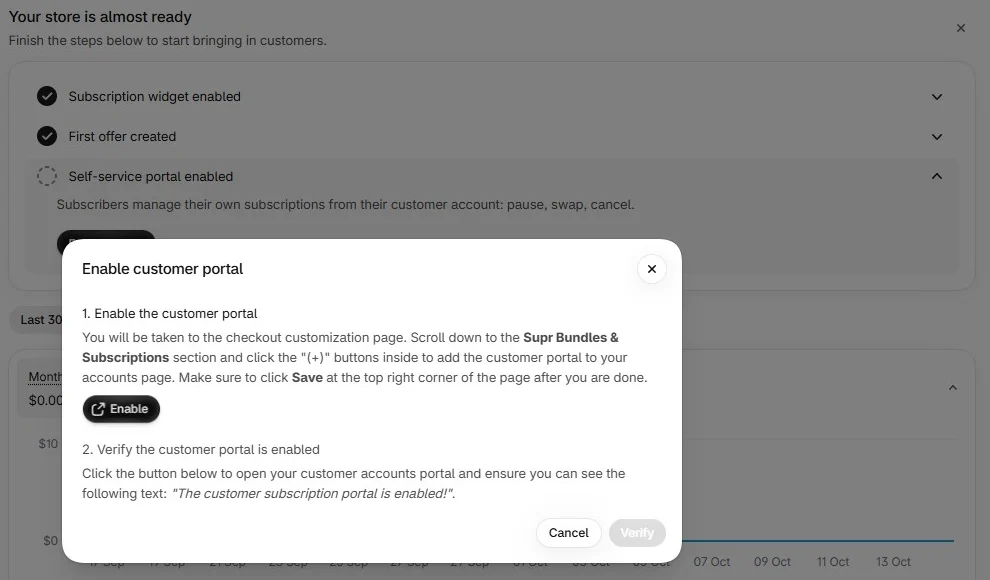
Subscribers need to pause, skip, swap or cancel without emailing you. Supr’s checklist calls this step “Self-service portal enabled”.
The app does not switch the portal on by itself. Clicking Enable portal opens a two-step guide: go to Shopify’s checkout and accounts editor, find the Supr Bundles & Subscriptions section, add the customer portal to the accounts page and save, then come back and verify it. Until then, the dashboard shows the Subscription portal as Not enabled.
This version of the portal needs Shopify’s new customer accounts. The help docs describe a legacy portal for stores still on classic accounts. They also suggest adding a Subscriptions link to your customer account menu so subscribers can find the portal. The app has a one-click button for this on new customer accounts.
We followed the guide. In the editor, the app offered four blocks: a thank-you page subscription block, Subscriptions, Checkout Subscription Picker and Order Subscription Information. We added the Subscriptions page to customer accounts and saved. The new page showed up next to Orders and Profile in the account preview.
The instructions are clear, but this is easy to miss. A store could launch subscriptions with the widget live and the portal still off, leaving subscribers with no way to manage their plan themselves. Finish this step before you publish your first offer.
We did not run the verify step or log in as a subscriber, so we cannot confirm which actions the portal offers in practice. The help docs say subscribers can skip, pause or cancel deliveries, change quantities, and swap or add products. Cancellation and pause flows, with reasons, counter-offers and pause limits, are set up under Grow, which we did not open.
What Happens After the First Order
We did not place an order, so this section is based on the app’s help docs rather than our test.
- Renewals are normal Shopify orders. Each renewal charges the customer’s saved payment method on the scheduled date and creates an order for you to fulfil as usual.
- Payment gateways are limited. Subscriptions work with Shopify Payments (including Shop Pay), PayPal Express, Authorize.net, Adyen and Stripe. This is a Shopify rule for subscriptions, not a Supr limit, but stores on other gateways cannot use it.
- Existing subscribers keep their terms. Each subscription keeps its own copy of the offer. If you change a discount or edit an offer later, only new subscribers get the change. This protects customers from surprise price changes, but it means a price rise for current subscribers needs a separate process.
- Notification emails are set up under Settings. The docs mention emails for a new subscription, an upcoming renewal and a failed payment.
- Uninstalling stops renewals. Removing the app also removes the widget.
The docs also recommend placing a test subscription order before going live. We agree.
Analytics
The Analytics screen has five tabs: Overview, Offers, Products, Subscription options and Loyalty. The Overview shows monthly recurring revenue, subscription order revenue, subscription growth, churn rate and subscription take rate, followed by charts for revenue from Supr, bundle and subscription revenue, and cancellation reasons. You can compare against the previous period, and there is a Reports button.
Every figure was zero on our store because we placed no orders. The metric choice is sensible for a subscription business, especially churn rate, take rate and cancellation reasons, but we cannot say how accurate the numbers are.
Where Supr Bundle & Subscription App Falls Short
Four things would matter for a real store.
The portal is a separate, manual step. The app guides you through it, but you have to add the portal in Shopify’s editor yourself. Skip it and subscribers cannot manage their own plans.
English-only admin. The listing shows English as the only app language. The developer says the widget is translated into more than 100 languages, but one merchant asked for automatic language switching, including for emails.
Caps have gaps. The help docs describe caps on active subscriptions, but per-customer limits are not checked for guest checkouts. One long-term merchant had asked for purchase caps, so test this if you sell limited stock.
No paid fallback. Free is the appeal, but it also means there is no higher plan with extra guarantees. The developer says any paid plans will be announced well in advance and that merchants will not be moved to a paid plan without notice. That is a promise, not a contract.
Pricing and Value
Supr Bundle & Subscription App is free. On 15 October 2026, the Shopify App Store listing showed a single Free plan. The developer’s pricing page lists one plan at $0 a month with all features included, unlimited subscription plans and contracts, and no usage or transaction fees.
That makes the value easy to judge. Most subscription apps charge more as your subscriber count or revenue grows. Here, the app’s cost stays at zero however large your subscription base gets. Shopify’s own payment processing fees still apply.
The real costs are your time setting it up properly and checking billing with a few real orders.
What Merchants Report
Merchant reviews are almost all five stars. When we checked, there were no reviews below four stars. The most common theme by far is fast, helpful support. Several merchants say the team set up their bundles and subscriptions for them or helped them move from another app. Others say the app is simple to use and that having build-a-box and subscriptions in one app saved them from running two.
The four-star reviews add useful detail:
- Learning curve: One new merchant found the app confusing at first, and the team helped them set it up.
- Language: One merchant asked for the app and its notification emails to switch language automatically.
We did not test support ourselves, so treat these as merchant reports.
What We Liked
- Free with no transaction fees: One plan, every feature, no share of renewals.
- Clear offer builder: Three offer types, six subscription templates and a live preview.
- All products at no cost: Offers can apply to every product, a collection or specific products.
- Clean storefront widget: Subscribe & Save options, a savings badge and the required consent text, styled to match the theme.
- Subscription-focused analytics: Recurring revenue, churn, take rate and cancellation reasons in one place.
What Could Be Better
- Manual portal setup: You add the customer portal in Shopify’s editor yourself.
- English-only admin: No other app languages listed.
- Cap gaps: Per-customer subscription limits do not count guest checkouts.
- Untested after the first order: We could not judge billing, retries or the subscriber experience in a setup test.
- No paid tier: No higher plan to fall back on if the free model changes.
Who Supr Bundle & Subscription App Is Best For
Supr Bundle & Subscription App suits small and growing stores that want to add subscribe-and-save, bundles or both without a monthly fee or a cut of renewals. It is a particularly good fit for stores selling consumables, refills or curated boxes, since the templates cover those models out of the box.
It also suits merchants who would like help setting up, given the free setup offers in the app.
Who Should Consider an Alternative
If you need a long, proven track record with complex subscription operations, or a paid plan with formal service commitments, a larger subscription platform may be a safer bet.
Stores on a payment gateway Shopify does not support for subscriptions cannot use it. Stores on classic customer accounts get the legacy portal instead of the recommended one.
If you want to compare options, we have also reviewed Recharge, Appstle, Seal, Loop, Subi, Kaching, PayWhirl and Recurpay Subscriptions. We have not run them head to head, so we are not ranking them here.
Final Verdict
Supr Bundle & Subscription App gives a Shopify store a lot for nothing: subscriptions, bundles and both together, a clear offer builder, a clean product-page widget and subscription analytics, with no transaction fees. In our test, we had a live offer on a product page within a few screens.
The main caveats are the manual portal step, the English-only admin and the billing and subscriber experience we could not test.
Our advice: install it, enable the widget, build one offer from a template and finish the customer portal step before you publish. Then place a few real test orders and run a renewal. If billing and the portal work as described, it is very hard to beat on price.
Frequently Asked Questions
Is Supr Bundle & Subscription App free?
Yes. On 15 October 2026, the Shopify App Store listing showed only a Free plan. The developer says there are no usage or transaction fees.
Do subscribers get a self-service portal?
Yes, but you have to add it yourself. The app guides you to Shopify’s checkout and accounts editor, where you add the Subscriptions page to customer accounts and save.
Which payment gateways work with Supr subscriptions?
According to the app’s help docs, Shopify Payments (including Shop Pay), PayPal Express, Authorize.net, Adyen and Stripe. This follows Shopify’s own rules for subscriptions.
If I change an offer, do current subscribers get the new price?
Generally no. Each subscription keeps the terms it started with, so changes to a discount or offer apply only to new subscribers. The docs note a few exceptions, such as discounts you schedule to change after a set number of orders.
Did you test billing and renewals?
No. We did not place a subscription order, so we could not test billing, failed-payment retries, renewals or the subscriber portal.