
A store that wants to test subscriptions usually doesn’t want another monthly bill before its first subscriber signs up. It wants a “Subscribe and Save” option on a few products, a fair discount, and a way to see whether customers actually take it.
PayWhirl Subscriptions is built for that start. You can install it free, it has no cap on subscriptions or orders, and a setup team will install it for you at no charge. It has been on the Shopify App Store since October 2020, holds a 4.7 rating across 190 reviews, and carries the Built for Shopify badge.
The catch is that PayWhirl takes a percentage of your subscription orders on every plan. So the real question isn’t whether PayWhirl is cheap to start. It’s this: Can a small store launch subscriptions on PayWhirl without paying up front, and at what point do the percentage fees make a paid plan the better deal?
We installed PayWhirl on a Shopify development store, created a 10% Subscribe and Save plan with the Quick Start, added the widget to our theme, and checked it on a live product page.
Key Takeaways
- Best for stores testing subscriptions: The Free plan has no monthly fee, no subscription limit, and 0% fees on your first $5,000 processed.
- You pay a percentage instead: After that $5,000, fees run from 3% on Free down to 0.75% on Scale, charged on the full order total whenever a subscription item is in the cart.
- Setup was fast: The Quick Start created a working 10% monthly plan from one short form, then walked us straight to adding the widget to our theme.
- The widget priced the discount correctly: It showed $749.95 for one-time purchase and $674.96 for Subscribe and Save on our product page.
- Check where the widget lands: On our theme, it appeared below the product images, after the Add to cart and Buy it now buttons.
Our Verdict
PayWhirl is a good fit for a store that wants to try subscriptions without committing to a monthly fee. Setup is short, the free plan isn’t limited by subscriber count, and a setup team is offered at no charge if you get stuck.
The Quick Start was the strongest part of our test. One form covers the product, the discount, and the delivery interval. A second step puts the widget on your theme. We had a plan and a working widget without touching code.
The main caution is cost as you grow. Every plan takes a percentage of subscription orders, so your bill rises with your revenue. That’s fine while subscriptions are small, but it’s worth doing the maths before you scale.
Our test stopped at the product page. We didn’t place a test order, trigger a renewal, or open the customer portal, so this review makes no claims about what happens after a shopper subscribes.
What PayWhirl Subscriptions Offers
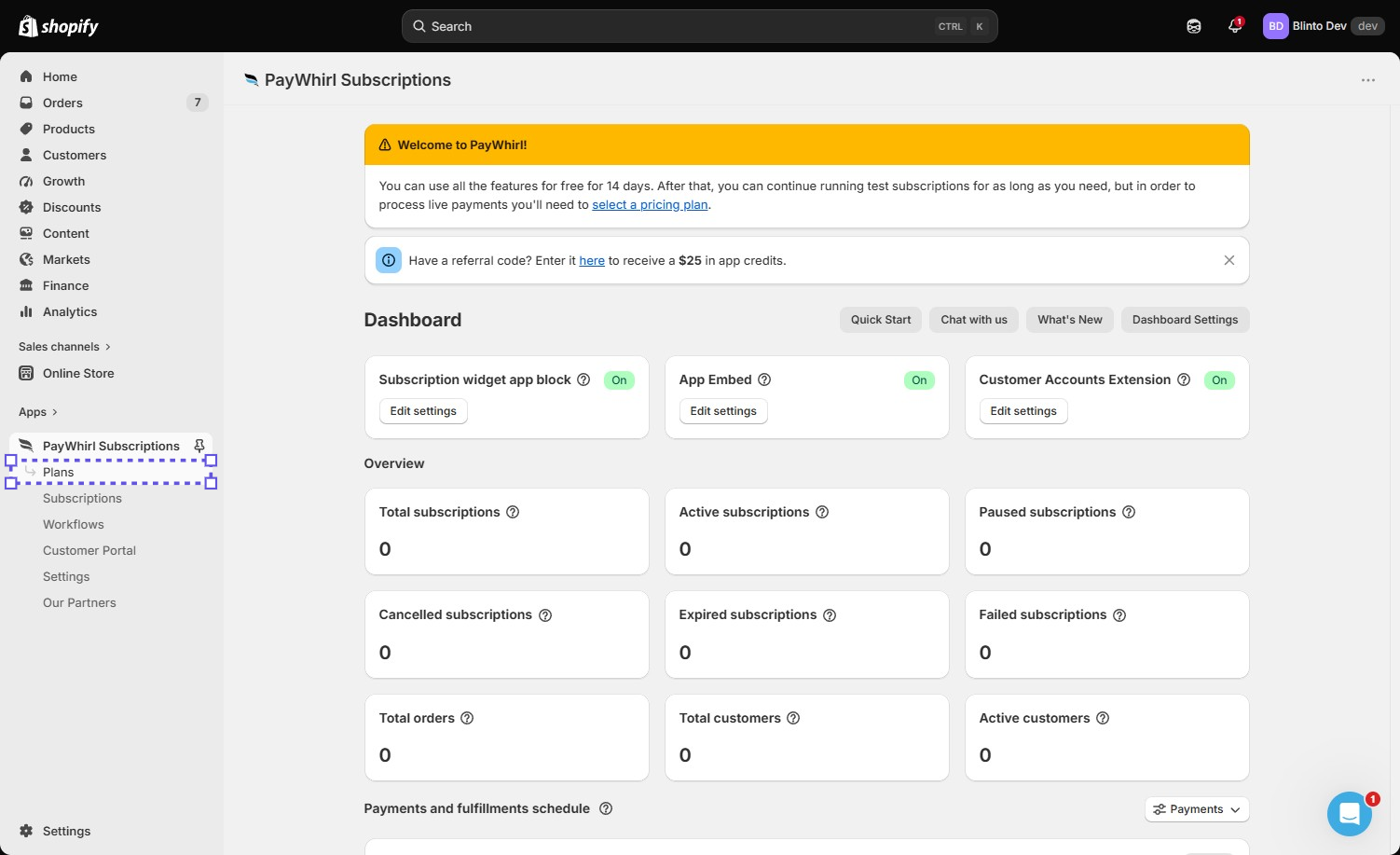
PayWhirl runs recurring orders from inside the Shopify admin. Its menu has Plans, Subscriptions, Workflows, Customer Portal, Settings, and Our Partners. The dashboard shows whether the three storefront pieces are switched on: the subscription widget app block, the app embed, and the customer accounts extension. On our store, all three showed On.
Below that, an overview tracks total, active, paused, cancelled, expired, and failed subscriptions, plus total orders, total customers, and active customers. There’s also a payments and fulfillments schedule. Quick Start, Chat with us, What’s New, and Dashboard Settings buttons sit above it all.
The developer lists analytics and data exports, cancellation prevention flows, email templates, automatic address updating, workflow automation, failed payment actions, inventory management, a Klaviyo integration, and an API with webhooks. Most of these depend on your plan. PayWhirl also offers free migration from other subscription apps, including Recharge, Appstle, Bold, and Seal. It works with Shopify customer accounts, Shopify POS, and the Shopify admin. The app is available in English only.
A welcome banner explains the trial: every feature is free for 14 days, and after that you can keep running test subscriptions for as long as you like. To take live payments, you have to pick a pricing plan.
What We Tested
We installed PayWhirl on the Blinto Dev Shopify development store, which uses the Savor theme. We used the Quick Start to create a plan with a 10% discount and monthly delivery, then used its second step to add the subscription widget to our published theme. We checked the plan on the Manage Plans page and viewed the widget on a product page.
We didn’t place a test order, go through checkout, or trigger a first or recurring charge. We didn’t test the customer portal, workflows, cancellation flows, failed payment handling, analytics, email templates, migration, the free setup service, or support.
Setting Up a Plan with Quick Start
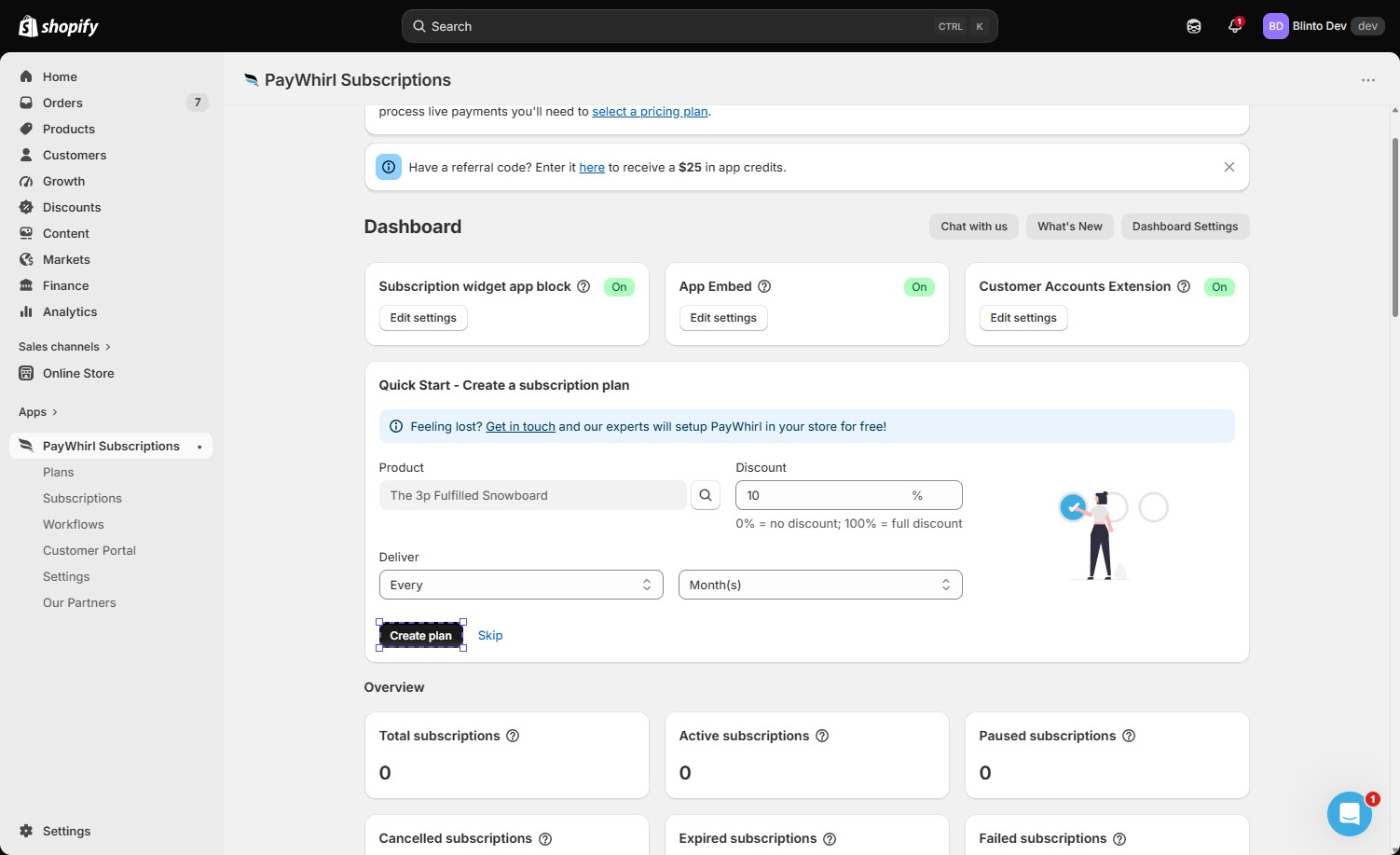
The Quick Start asks for three things on one screen: a product, a discount percentage, and a delivery interval. A note under the discount field explains that 0% means no discount and 100% means the whole price. We entered 10% and chose monthly delivery, then clicked Create plan. There’s a Skip link if you’d rather build plans yourself.
The next step, Install subscription widget, asks you to select a theme and click Add widget. Our published Savor theme was already selected. A Watch video button sits next to Done if you want a walkthrough.
Both steps show a banner offering free setup by PayWhirl’s team. PayWhirl lists expert installation on every plan, including Free. For a merchant who doesn’t want to touch the theme editor, that’s a real advantage.
Managing Plans Later
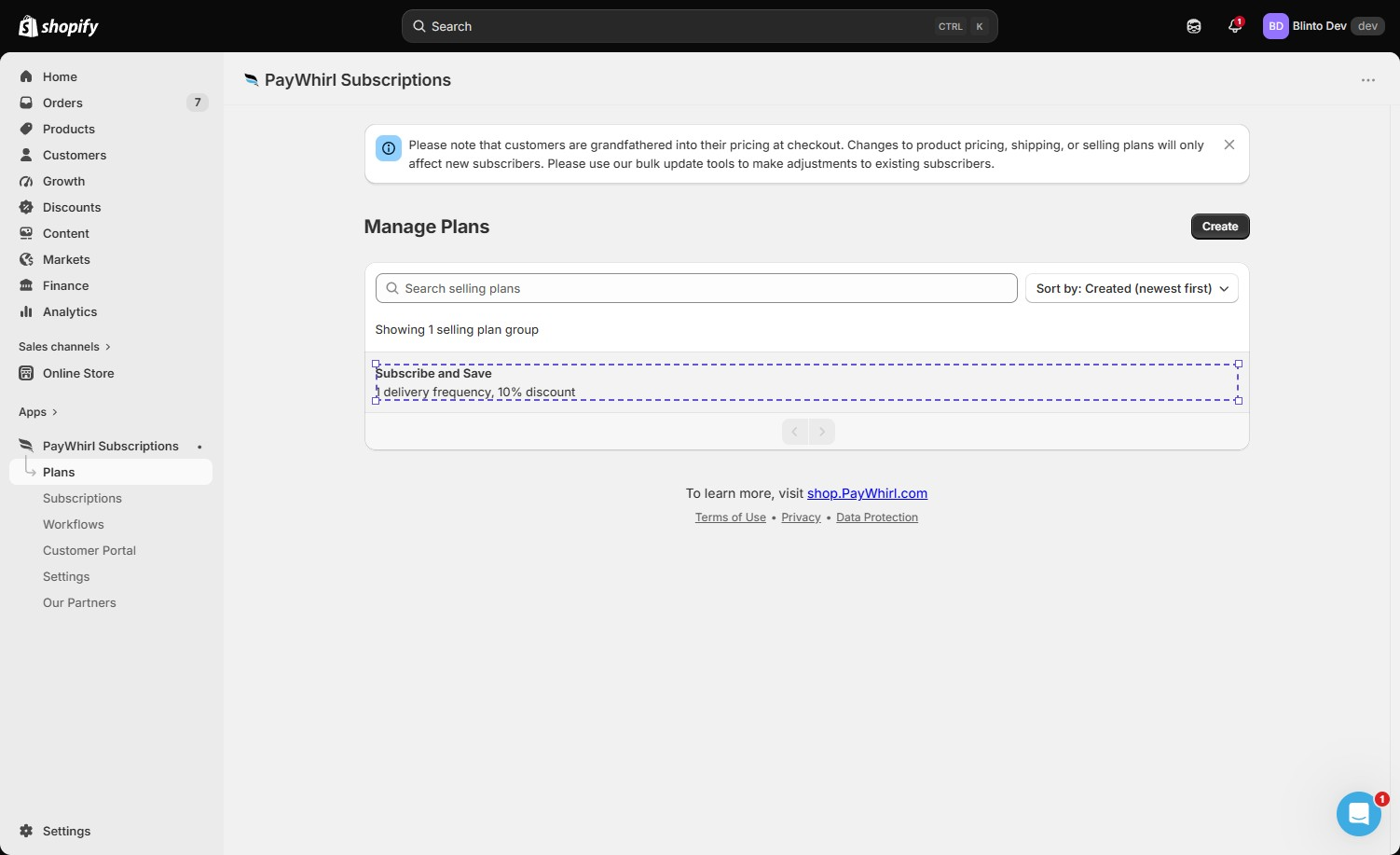
After the Quick Start, our plan appeared on Manage Plans as a selling plan group called Subscribe and Save, with one delivery frequency and a 10% discount. The page has search, sorting, and a Create button for new plans.
The most important thing on this page is the notice at the top. Customers are locked into the price they paid at checkout. Changing a product’s price, shipping, or the plan itself only affects new subscribers. To change existing ones, you have to use PayWhirl’s bulk update tools.
That’s fair to customers, but it matters for your margins. If you raise prices or cut a discount, your current subscribers keep the old terms until you update them yourself. We didn’t test the bulk update tools, so we can’t say how easy that is.
The Widget on the Storefront
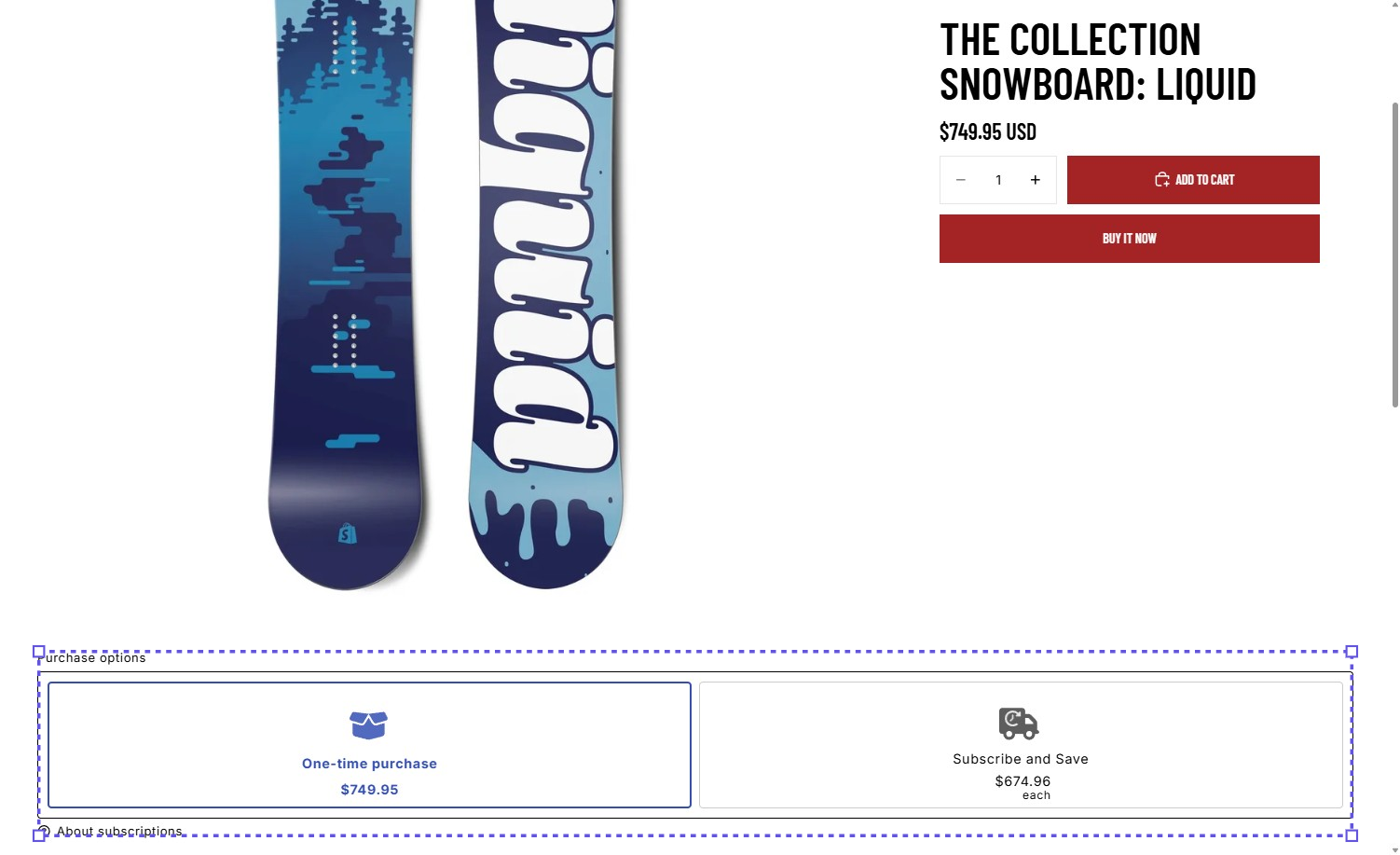
On the storefront, the widget appeared under Purchase options on a snowboard from Shopify’s sample catalogue. It showed two cards: One-time purchase at $749.95 and Subscribe and Save at $674.96 each. That’s the 10% discount applied correctly. One-time purchase was selected by default, and an About subscriptions link sat below the cards.
Showing the discounted price on the card is useful. A shopper can see the saving without doing the maths.
The weak point was placement. On our Savor product page, the widget sat below the product images, after the quantity picker, Add to cart, and Buy it now. A shopper could add the product to the cart without ever seeing the subscription option. PayWhirl’s own guidance is to place the plan selector near the buy buttons, and you can move the app block in the theme editor. Check where it lands on your theme before you launch.
We didn’t select the subscription option, add it to the cart, or check out, so we can’t say how the choice carries through to the cart and checkout.
What Merchants Report
PayWhirl’s public reviews are strongly positive. Merchants most often praise support, describing staff who are patient, thorough, and quick to step in. Others mention how simple the app is to run, the calendar view of upcoming subscriptions, and a smooth move from another subscription platform.
The lower-rated reviews are few, but some themes repeat. Several merchants say support was slow to respond when they needed it. Others report billing problems, such as customers being charged more than once in a cycle, or subscriptions that stopped working and cost them subscribers. One merchant noted that problems weren’t flagged with any alert. Another said out-of-date documentation led them into a wrong setup.
We didn’t run billing, wait on renewals, or contact support, so we can’t confirm any of these reports. They’re a useful checklist for your trial: run a test subscription through at least one renewal, and check your first live charges closely.
Pricing and Value
Verified 23 September 2026.
| Plan | Monthly fee | Transaction fee | What it adds |
|---|---|---|---|
| Free | $0 | 0% on the first $5,000 processed, then 3% | Unlimited subscriptions and orders, expert installation, migration, analytics and data exports, cancellation prevention flows |
| Pro | $9 | 2% | Customizable email templates, automatic address updating, faster support |
| Traction | $29 | 1.5% | Workflow automation, failed payment actions, inventory management, Klaviyo integration, API and webhooks |
| Scale | $149 | 0.75% | Lower fee for high volume, dedicated account manager, first priority support |
Paid plans include a 14-day free trial. Fees are added to your monthly Shopify bill. You can change plans or cancel at any time, and Shopify prorates the difference. PayWhirl’s fees are separate from Shopify’s own charges and your payment processing fees.
The fee applies to the whole order total, including shipping and taxes, whenever an order contains at least one subscription item. Orders with only one-time products aren’t charged.
That’s the key to working out your cost. Once you’re past the first $5,000, here’s roughly where each upgrade pays for itself, based on monthly subscription order volume:
- Free to Pro: Pro saves 1% for $9 a month, so it’s cheaper above about $900 a month.
- Pro to Traction: Traction saves another 0.5% for $20 more, so it’s cheaper above about $4,000 a month.
- Traction to Scale: Scale saves another 0.75% for $120 more, so it’s cheaper above about $16,000 a month.
For a new store, that’s a good deal. You pay nothing until subscriptions bring in real money, and there’s no subscriber cap to push you up a plan.
For a growing store, it adds up. At $10,000 a month in subscription orders, Traction costs about $179 a month. Apps with a flat fee and no percentage can cost far less at that point. Also note that failed payment actions and the Klaviyo integration only arrive on Traction, so the plan you need may depend on features as much as on volume.
What We Liked
- A real free plan: No monthly fee, no subscriber cap, and no fees on your first $5,000.
- A short Quick Start: Product, discount, and interval on one form, followed by a one-click widget install.
- Clear storefront pricing: The widget showed both prices, with the 10% discount applied correctly.
- Setup status at a glance: The dashboard shows whether the app block, app embed, and customer accounts extension are on.
- Free expert setup on every plan: Offered on the dashboard and listed on every tier.
What Could Be Better
- Percentage fees on every plan: Your bill grows with your subscription revenue, and the fee counts shipping and taxes too.
- Widget placement needs checking: On our theme, it appeared below the buy buttons, where shoppers could miss it.
- Price changes don’t reach existing subscribers: Current subscribers keep their old terms until you bulk update them.
- Key retention tools sit on Traction: Failed payment actions and workflow automation start at $29 a month plus 1.5%.
- English only: The app is available in English only.
Who PayWhirl Subscriptions Is Best For
PayWhirl suits stores trying subscriptions for the first time. You can launch, see whether customers subscribe, and pay nothing until you pass $5,000 in subscription orders.
It suits merchants who want help with setup, since expert installation is included even on the Free plan.
It also suits stores switching from another subscription app, given the free migration offer. We didn’t test migration.
Who Should Upgrade or Consider an Alternative
Move to Pro once your subscription orders pass about $900 a month, or if you want custom email templates. Move to Traction if you need failed payment actions, workflow automation, Klaviyo, or the API.
Look elsewhere if you already have steady, high subscription revenue and would rather pay a flat monthly fee than a percentage. Look elsewhere too if you need the app itself in a language other than English.
Final Verdict
PayWhirl did what a starter subscription app should do. We created a 10% monthly Subscribe and Save plan, added the widget to our theme, and saw the correct discounted price on a live product page, all without writing any code.
The strongest reason to choose PayWhirl is how little it asks up front. There’s no monthly fee, no subscriber limit, and free setup help. The biggest caveat is the percentage fee, which is small at the start and grows with you.
If you’re launching subscriptions for the first time, start on Free and build your real offer. Move the widget next to your buy buttons, then run a test subscription through a renewal before you go live. Once subscription orders pass a few thousand dollars a month, compare the fee against a flat-priced app.
Frequently Asked Questions
Does PayWhirl Subscriptions have a free plan? Yes. The Free plan has no monthly fee and no subscription limit. The first $5,000 you process is fee-free, and after that PayWhirl charges 3%.
Does PayWhirl charge a transaction fee? Yes, on every plan: 3% on Free, 2% on Pro, 1.5% on Traction, and 0.75% on Scale. The fee applies to the full order total when the order contains a subscription item.
Can I test PayWhirl before paying? Yes. All features are free for 14 days, and you can keep running test subscriptions after that. You need a pricing plan to take live payments.
Do price changes apply to existing subscribers? No. Subscribers keep the price they signed up at. You have to use PayWhirl’s bulk update tools to change existing subscriptions.
Is PayWhirl Subscriptions Built for Shopify? Yes. The app carries the Built for Shopify badge as of September 2026.