
A cart should be easy to use. It should help buyers check what they chose. It can also show a deal or add-on. UpCart aims to do both jobs.
We took a look at its tools. We tried the setup flow and cart editor. We saw the offer and deal tools. We also viewed its stats and help pages. This review shares what we found. It does not claim a rise in sales.
Key Takeaways
- Best fit: Shops that want more from the cart.
- Ease of use: We found the setup clear.
- Main tools: Cart themes, add-ons, deals, and rewards.
- Extra tools: Sticky Cart, stats, and help pages.
- Main drawback: The fee can rise with order count.
- Test limit: We did not run live sales tests.
Our Verdict
Worth a look for shops that need more cart tools.
UpCart gives you a slide-out cart. It lets you change its look. You can show deals, gifts, and add-ons. The main tools sit in one place.
We found the setup easy to follow. The cart editor was clear as well. Yet we did not test live sales. We cannot say it will lift your sales.
Check the fee as your shop grows. If you need a plain cart, look elsewhere. If you plan to use cart offers, try it. Test it on your theme first.
What Is UpCart?
UpCart is a cart app for Shopify. It adds a drawer to your shop. The drawer opens on the same page. Buyers can see what is in their cart.
You can change the cart’s look. You can also add deals and product offers. You may show a gift or reward too. The goal is to help buyers shop.
A good cart should stay clear. Too many offers may get in the way. Think of the cart as a short step. Buyers still need to reach checkout fast.
What We Tested
We went through the setup screens. We looked at the cart editor. We checked the theme and style tools. We saw the deal and offer settings. We viewed Sticky Cart and the stats page. We also checked the help area.
We did not place a real order. We did not test a live shop. We did not check sales or conversion data. We did not time the help team. Our notes cover the tools we saw.
That limit is key to our verdict. An easy editor is a good sign. Yet it does not prove more sales. Your own shop test must come next.
Getting Started With UpCart
The app has a guided setup flow. We found the steps easy to follow. We could see where to pick a plan. We could also find the cart tools.
The first screens did not feel hard. We did not need a long guide. For a new shop owner, that helps. You can get to the editor fast.
Still, setup is just the first step. A live theme may have its own code. One cart app may clash with another. Test the cart before you go live.
Building the Cart
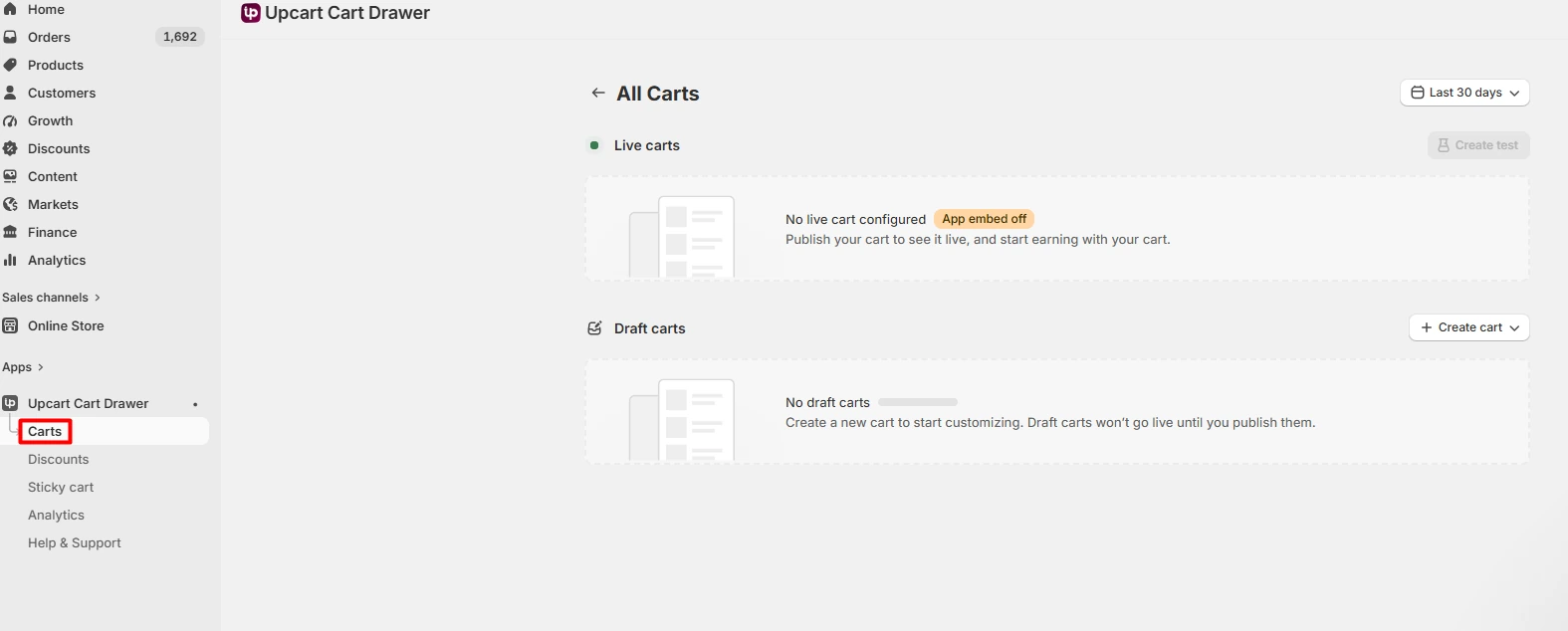
The cart editor puts key tools together. You can change the look and layout. You can also place deals in the drawer. We found these controls easy to spot.
Start with the cart’s most basic job. Can a buyer see each item? Is the item count clear? Can they find the total and checkout? Keep those parts in view.
Next, check the cart on a phone. Long names may take up room. An offer may push a button down. We did not run that live check. It is a step you should take.
Cart Templates
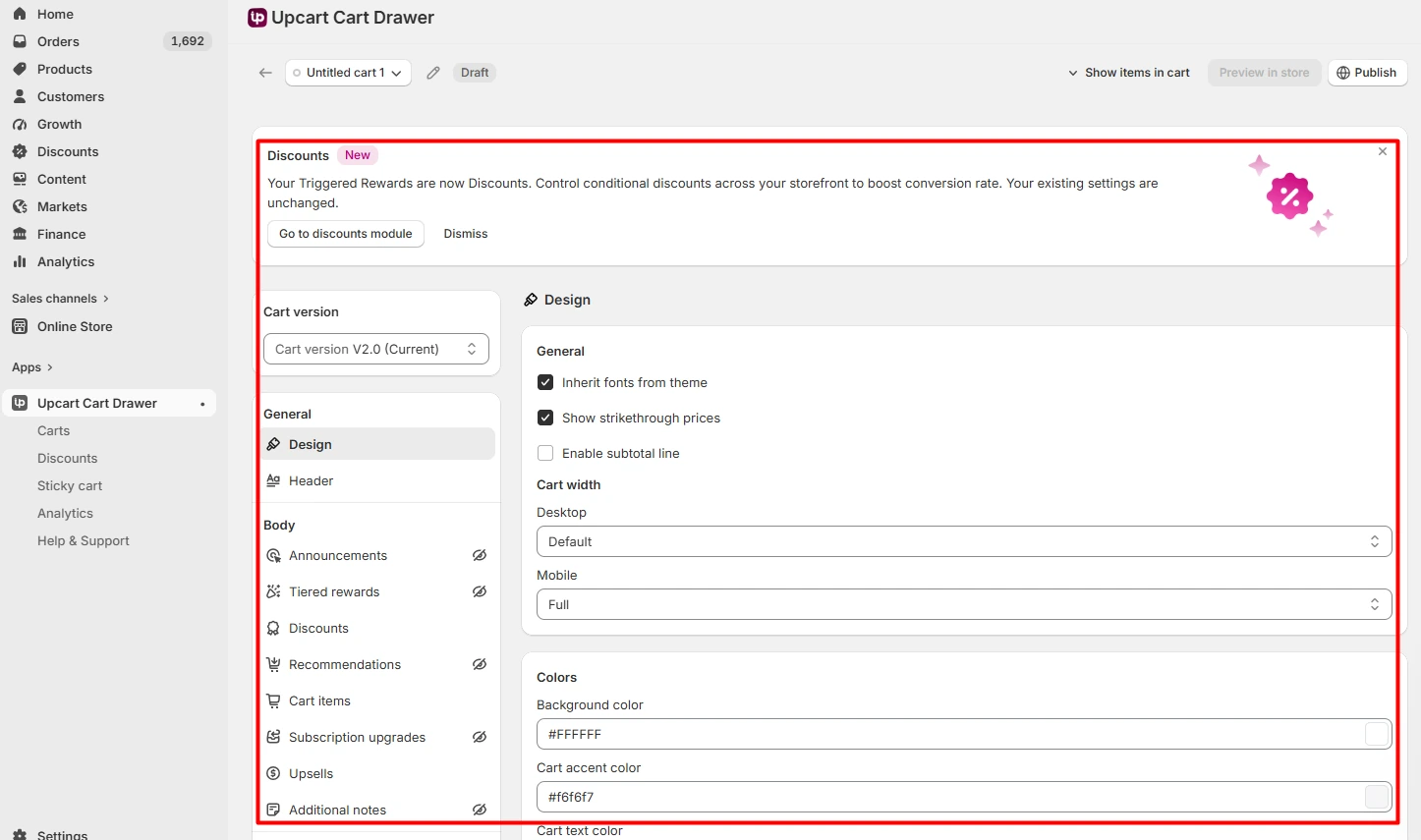
You can start with a cart theme. That saves you from a blank page. Pick one that suits your shop. Then change its text and look.
We could see how to choose themes. The process was easy to grasp. A simple theme is a good first pick. You can add more parts with time.
Do not add too much at once. A cart full of blocks feels busy. Make room for each item and price. Leave the main checkout link in sight.
Product Offers in the Cart
UpCart lets you show add-on items. A shoe shop could suggest shoe care. A phone shop could suggest a case. Those are use cases, not test results.
Pick offers that fit the main item. Keep the price plain and easy to see. Do not hide the cost at checkout. One apt offer may be enough.
We saw the tools for cart offers. We did not run a sales test. We cannot say which offer works best. Test each idea with your own buyers.
Need offers on more shop pages? Read our Selleasy review. That app has a wider offer focus. UpCart puts more focus on the cart.
Discounts and Deals
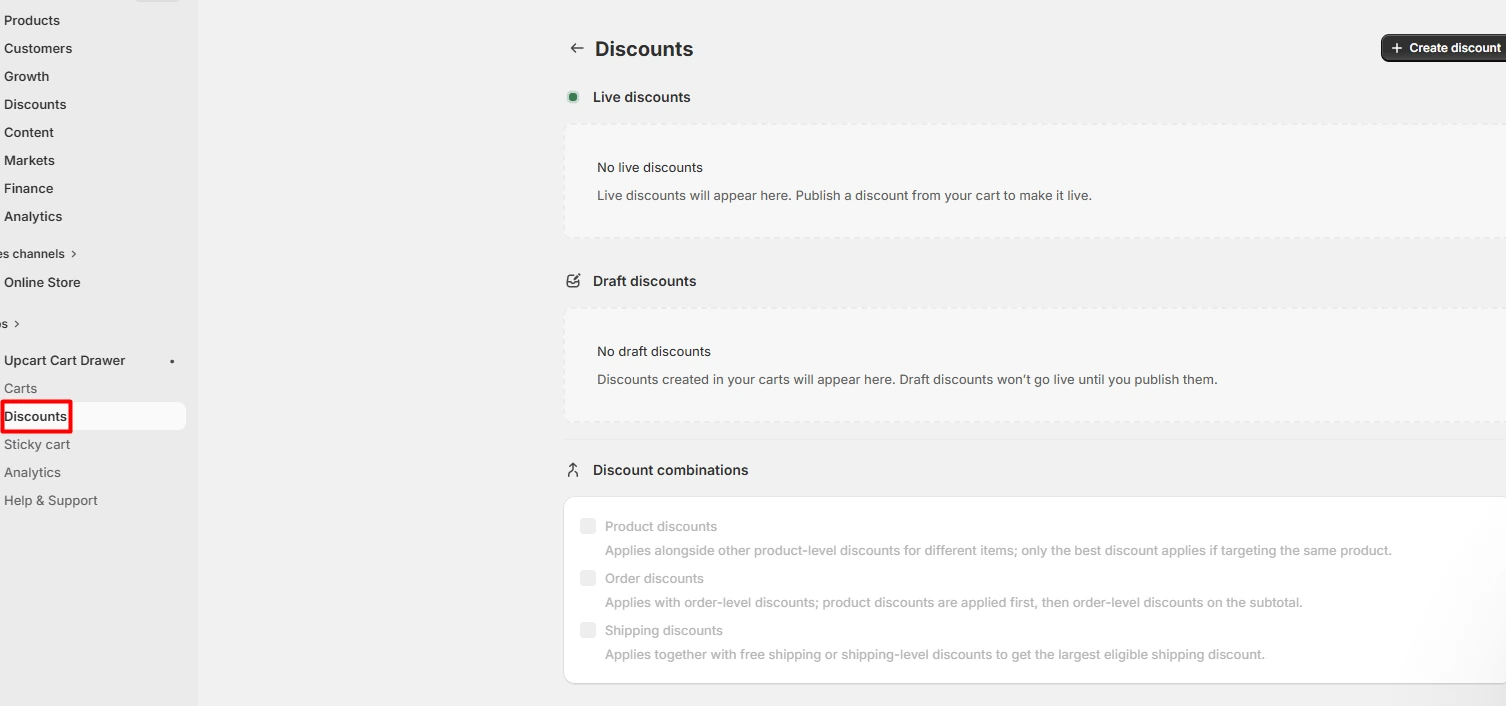
We looked at the deal setup. We found fields for a name and code. There was space for more detail too. The form was easy to find.
A deal should have clear rules. Check which items it can apply to. Check if it works with other deals. Then check the cart total.
We did not place a test order. We cannot vouch for live code use. Run a test with your own shop rules. Do this before you share a code.
Sticky Cart
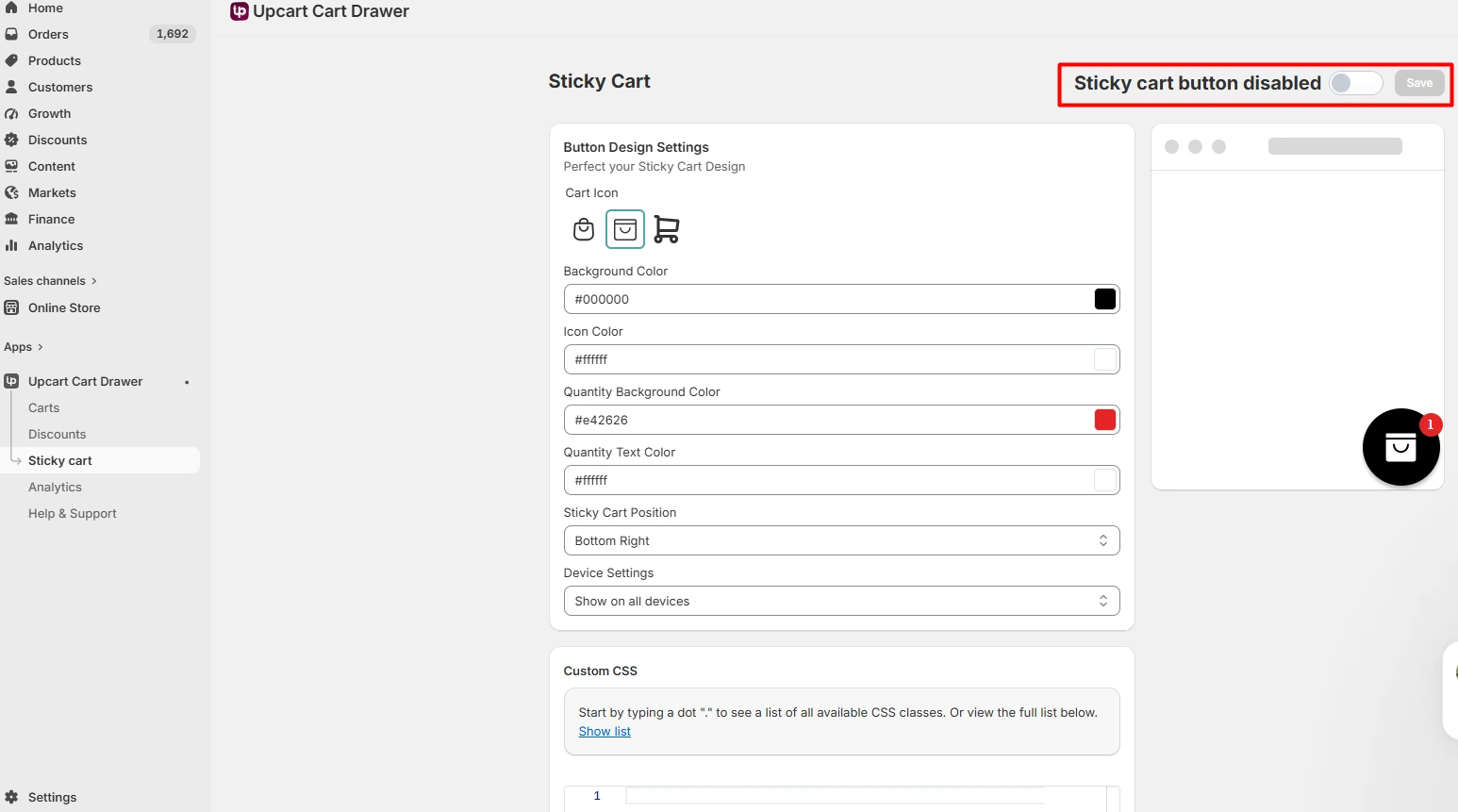
Sticky Cart gives buyers quick cart access. We saw how to switch it on. We also saw its style tools. The idea is simple and clear.
This may help on long shop pages. Buyers can get back to the cart. They need not hunt for the cart icon. Yet the button must not block content.
Check it on a phone too. Does it cover a buy button? Can a buyer tap it with ease? We did not run a live user test. Treat these as checks to make.
UpCart Analytics
The app has a page for cart stats. You can pick a span of dates. We saw the page and its controls. We did not check real order data.
Use your own shop stats to judge offers. Check more than one day of sales. Note shifts in visits and item prices. They can change what the data means.
Do not assume a cart caused a lift. Test one change at a time. Then check the trend with care. We have no lift to report here.
Help and Support
We found a help area in UpCart. It had guides for setup and themes. We did not send a help request. We cannot rate how fast staff reply.
Cart apps work close to shop themes. That can lead to a clash. More so if you use custom code. Check help guides if issues show up.
It also helps to test key steps. Add an item, then change its count. Remove it, then try checkout. Run the steps on a phone as well.
UpCart Pricing
These were the fees on September 22, 2026:
| Plan | Monthly orders | Price |
|---|---|---|
| Development stores | Eligible development or partner stores | Free |
| 0–200 orders | Up to 200 | $29.99/month |
| 201–500 orders | Up to 500 | $34.99/month |
| 501–1,000 orders | Up to 1,000 | $54.99/month |
The paid plans had a 14-day trial then. Prices and trial terms may now differ. Check the current app listing before you pay.
The fee goes up with order count. A shop may outgrow its first tier. Plan for the next tier too. Ask if you will use the extra tools.
Do not pay for tools you will skip. If you just need a cart drawer, compare. A lean app may cost less. Pick the tool that fits your needs.
What We Liked About UpCart
Clear start. The setup steps made sense. We found the key pages with ease.
Good cart tools. The editor has room for new styles. It also has slots for offers.
Themes to start with. You need not build from scratch. A theme gives the cart a base.
One home for key tools. Deals and cart styles sit close by. This may save trips across apps.
Stats in the app. You can view cart data there. We did not test how sound it was.
These are notes from our app review. They are not proof of higher sales.
What Could Be Better
The fee can rise. More orders may mean a higher tier. Check the price as your shop grows.
Not all shops need all the tools. A plain cart may be enough. Start with your real needs.
Live use still needs a test. We did not run one. Check the theme, cart, and code first.
Too many offers can crowd the cart. Leave space for the main task. Buyers should find checkout with ease.
What Other Shops Say
Read both good and bad app reviews. Look for shops like your own. A theme or cart clash may matter. So may the help team’s work.
We did not check a live star score. We did not count new app reviews. We will not quote an old count. Check the Shopify app page for fresh views.
Each shop has its own needs. A good fit for one may fail another. Read the details, not just stars.
Who Is UpCart Best For?
UpCart may suit a shop with cart offers. It may fit a shop that wants rewards. It also helps if you want new cart styles. Those are the use cases to weigh.
A new shop may want less. You may need just a plain drawer. If so, compare the cost and tools. Do not choose by feature count alone.
Your main goal may be after-sale offers. If so, see our AfterSell review. That tool serves a later sales step.
Final Verdict
UpCart has a lot of cart tools. Its setup and editor were easy to use. We liked the themes and deal settings. The stats and help pages were clear.
Still, check the fee for your order count. Make sure you need the extra tools. Then test the cart on your own theme. We did not test live sales or checkout.
Our pick: Try UpCart for a cart with offers. Pick a basic app for a plain drawer. Choose based on cost and shop needs.
Frequently Asked Questions
What does UpCart do?
It adds a slide-out cart to Shopify. You can change its look. You can also show deals and add-ons. Buyers can check the cart on the page.
Is UpCart easy to set up?
We found the setup steps clear. The cart editor was easy to find. We did not test a full launch. Check it on your own theme.
How much does UpCart cost?
In September 2026, paid plans began at $29.99. The fee rose with order count. Check the app listing for new rates.
Is there a free trial?
The paid plans had a 14-day trial. That was true when we checked. See the app page for current terms.
Can UpCart show upsells?
Yes. It has tools for cart offers. We saw those tools in the app. We did not test a sales lift.
Does it show cart stats?
Yes. We saw a page with stats. We did not check real order data. Use your own data to judge results.
Can I change the cart design?
Yes. You can pick a theme. Then you can change the cart’s look. Check it on phones and large screens.
Will it work with my theme?
It is made for Shopify. A custom theme may need more care. Test the cart and checkout first. Look for clashes with other cart apps.
Is it good for small shops?
It can be if you need offers. A plain cart may need less. Check the fee and key tools. Do not buy more than you need.
Will UpCart raise my sales?
No sales lift is certain. We did not run a live test. Your items, buyers, and offers all matter. Use your own shop data to decide.