
A shopper lands on a collection page and wants a black jacket in medium, under $80. If the page can’t narrow down by color, size, and price, they scroll for a while and then leave. Search has the same problem. A misspelled word or a part number that the search bar doesn’t recognize ends the visit.
Smart Product Filter & Search by Globo.io is built for both jobs. It adds filters to collection and search pages and replaces the store’s search bar with its own instant search. It has been on the Shopify App Store since March 2018, carries the Built for Shopify badge, and holds a 4.9 rating from 2,378 reviews as of October 9, 2026.
Pricing is based on catalog size, and there are two plan types at every size: Basic and Professional. The biggest difference between them is AI-powered search. So the question we wanted to answer is: can a small or mid-sized store do well on Basic, or is Professional worth paying for?
We installed the app on a Shopify development store with 14 active products and went through its main admin areas during the free trial. The filter and search settings are clear and well organized. AI search was the one thing we could not switch on.
Key Takeaways
- Lots of control on Basic: Filters, search layouts, synonyms, redirects, pinned products, typo tolerance, Vehicle Finder, and analytics are all in the Basic plan.
- AI search is Professional only: In our trial, the AI-powered search toggle was greyed out with a “Professional plan required” note. We could not try it before paying for Pro.
- No free plan for a live store: The free plan is for development and test stores only. Basic starts at $14 a month for up to 500 products.
- Price climbs with catalog size: Professional costs about twice as much as Basic or more at small sizes, and both plans rise steeply past a few thousand products.
- Reliability is the main risk: Most reviews praise support, but low-star reviews keep reporting collection pages with no products or missing filters, including several from 2026.
- Best fit: Small and mid-sized stores that want detailed filter and search control at a low starting price, and auto-parts stores that need Year/Make/Model search.
Our Verdict
Recommended for small and mid-sized catalogs on Basic. Pro is only worth it if you need AI search.
Smart Product Filter & Search gives you a lot on its entry plan. The filter editor is easy to follow, the search settings are written in plain language, and the general settings cover the jobs most stores need, such as hiding products by tag or pushing sold-out items down the list. Vehicle Finder is included on Basic too.
The trade-offs are the Pro gate and the risk on busy days. The headline AI feature needs Professional, and in our trial we could not turn it on to see if it helps. Merchant reviews are very positive overall, but a steady run of low-star reviews describe storefront problems, such as empty collection pages, that are costly when they happen during a sale.
If you want strong filters and keyword search for a catalog in the hundreds or low thousands, start on Basic. Upgrade only if shoppers search in everyday words that your product titles don’t use.
What Smart Product Filter & Search Offers
In the Shopify admin, the app shows up as Smart Filter & Search. Its menu has Filters, Search, Settings, Recommendations, Vehicle Finder, and Translation, with Analytics, Pricing plans, and Contact under “View more”.
The app covers five jobs:
- Filters on collection pages, search results, and other pages you choose.
- Instant search with suggestions before, during, and after a search.
- Vehicle Finder, a Year/Make/Model search form for parts stores.
- Recommendations, product widgets such as best sellers and recently viewed.
- Analytics for filters and search.
Globo’s documentation says the app installs through a theme app embed with no code edits. The listing says it works with Judge.me, Shopify Markets, currency converter and quick-view apps, among others. Globo also offers an API for custom and headless storefronts.
What We Tested
We installed Smart Product Filter & Search on a Shopify development store with 14 active products. The store was on the app’s 14-day trial. We did not subscribe to a paid plan.
We reviewed:
- the filter editor, including where a filter applies and its filter options;
- the Search settings, including layout, matching, and searchable fields;
- the General settings for storefront and product visibility;
- the Vehicle Finder setup screen;
- the Filter analytics page;
- the in-app pricing screen.
We did not check the filters or search on the storefront. We did not test search quality, turn on AI search, upload vehicle data, build recommendation widgets, measure page speed, or contact support. Our store had no real traffic, so the analytics showed zeros.
So this review covers setup options, admin design, plan limits, and pricing. It makes no claims about search accuracy, storefront look, speed, or sales impact.
Filters: Ready-Made Options You Can Reorder
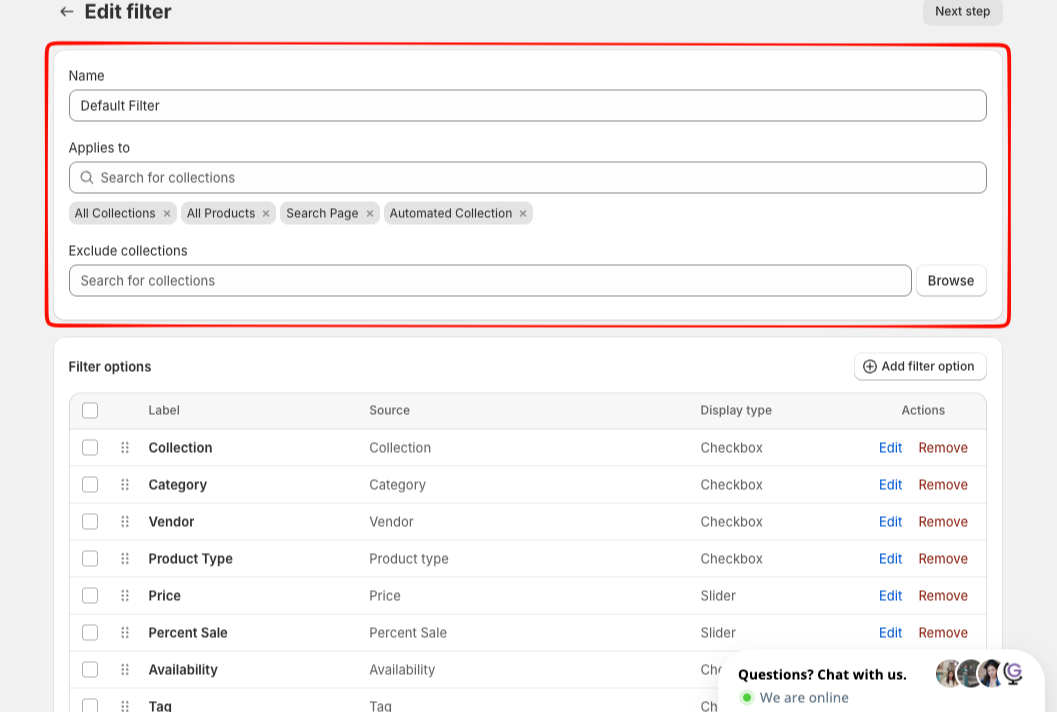
The Edit filter page answers two questions: where the filter shows up, and which filter options it has.
Where it applies. Our store’s Default Filter applied to All Collections. The Applies to field also accepted All Products, Search Page, and Automated Collection. Globo’s documentation adds specific collections and the home page. An Exclude collections field with a Browse button lets you leave certain collections out. That is handy if, for example, a gift card collection doesn’t need filters.
You can also create more than one filter. The listing describes unlimited filter trees, so a clothing collection and a homeware collection can each get their own set of options.
Which options it shows. The Default Filter in our store listed ten options: Collection, Category, Vendor, Product Type, Price, Percent Sale, Availability, Tag, Ready To Ship, and Location. Price and Percent Sale used a slider, and most of the others used checkboxes. Each row has a drag handle to change the order, plus Edit and Remove links.
The docs list more display types: radio buttons, color and text swatches, boxes, a dropdown, and yes/no. You can also filter by product options such as size and color, and by product or variant metafields. Basic allows 10 metafields and Professional 40.
Percent Sale is a useful one. It lets shoppers filter by size of discount, which a store with regular sales will want.
Settings: Product Visibility in One Place
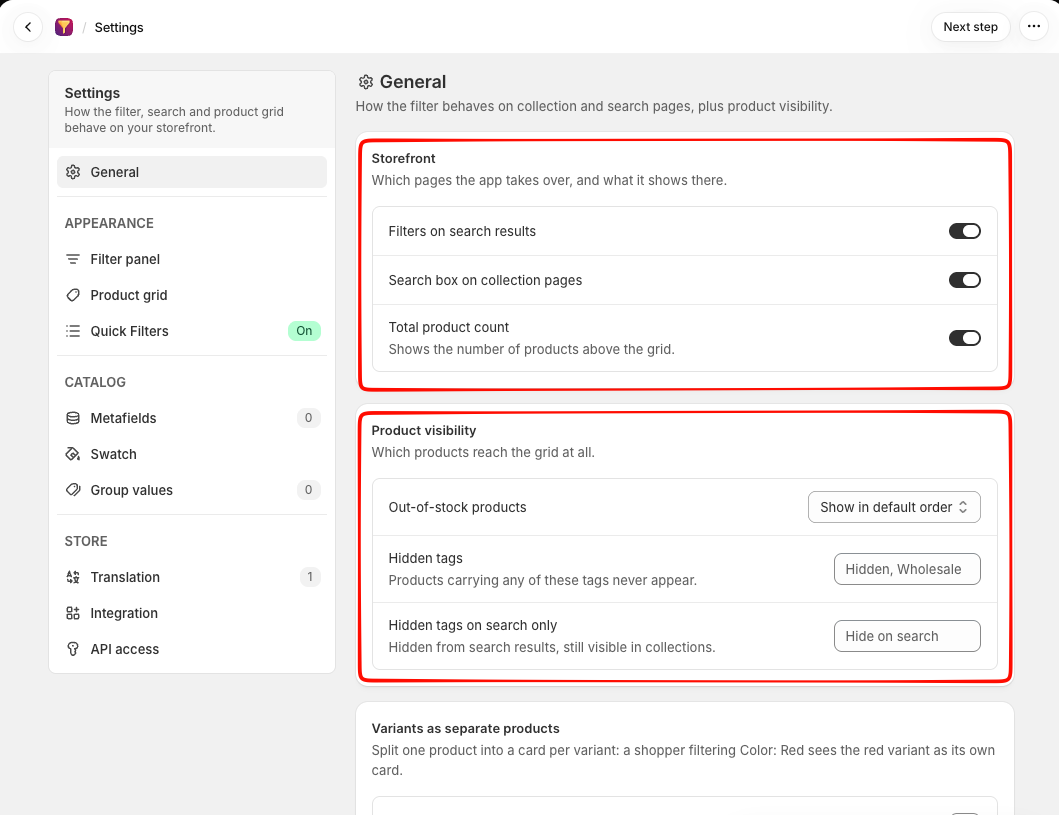
The General settings page controls how the app behaves on the storefront. It is short and easy to understand.
Under Storefront, three toggles were on in our store:
- Filters on search results, so shoppers can narrow a search, not just a collection.
- Search box on collection pages, which lets shoppers search inside the collection they are on.
- Total product count above the product grid.
Under Product visibility, you choose what happens to sold-out items. Ours was set to Show in default order. Globo’s docs list the other choices: move them to the end, hide them, or hide them only when a shopper filters. Pushing sold-out products to the end is a sensible choice for most stores.
There are also two tag fields. Hidden tags keeps products with those tags out of the grid entirely, such as wholesale-only items. Hidden tags on search only hides them from search results but keeps them in collections.
Below that is Show variants as individual products, which was off. When on, a shopper filtering for red sees the red variant as its own product card. The docs say you choose which options to split by, and that it only works with the app’s own filter sidebar. It is included on Basic.
The side menu leads to the rest: Filter panel, Product grid, and Quick Filters (on by default) for appearance; Metafields, Swatch, and Group values for catalog data; and Translation, Integration, and API access. Group values lets you merge messy values, such as “Navy” and “Dark blue”, into one filter option.
Where It Falls Short: AI Search Sits Behind Pro
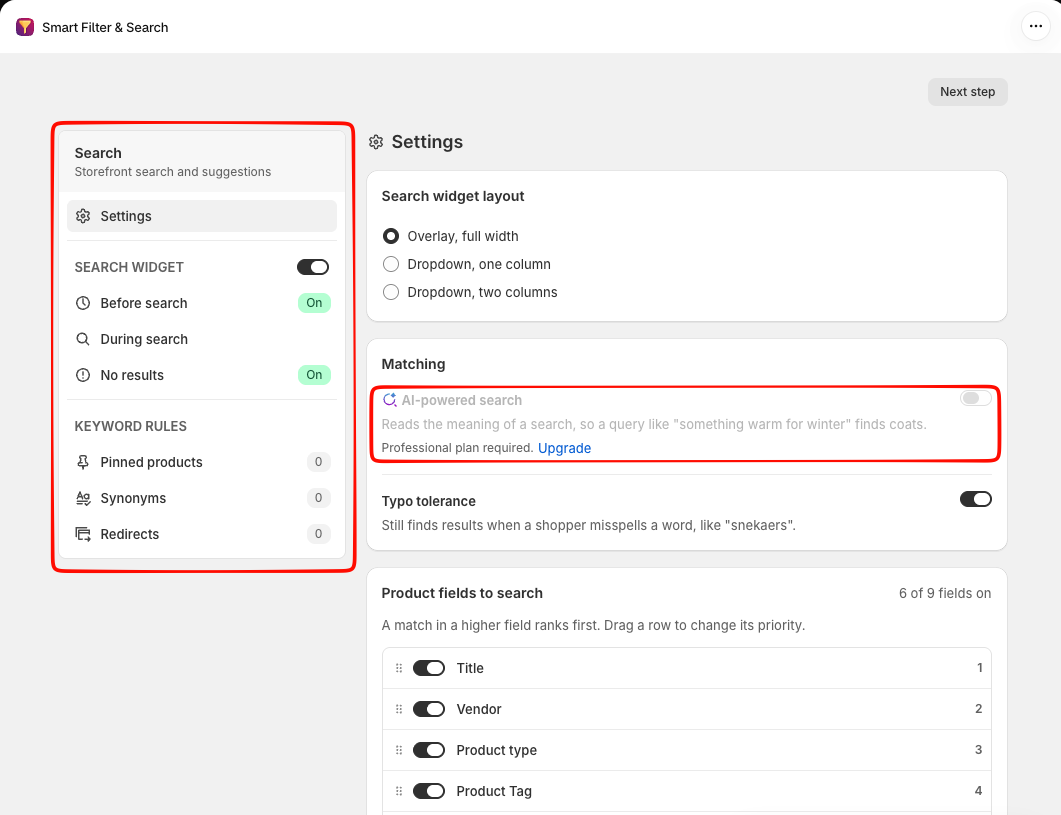
The Search area is laid out well. A side panel turns the search widget on or off and shows each part of it: Before search, During search, and No results. Before search and No results were on in our store. Below that are Keyword rules: Pinned products, Synonyms, and Redirects, each at zero.
Those keyword rules do a lot of the work on Basic. Synonyms teach search that “hoodie” and “sweatshirt” mean the same thing. Redirects send a search like “returns” straight to your returns page. Pinned products put chosen items at the top of a search.
The settings page gives three layouts: an overlay across the full width of the screen, a one-column dropdown, or a two-column dropdown. Typo tolerance was on, so a misspelled search still finds matches.
Product fields to search showed 6 of 9 fields switched on. Title, Vendor, Product type, and Product Tag were ranked 1 to 4. A match in a higher field ranks first, and you drag rows to change the order. SKU was one of the fields switched off. If shoppers search by part number or model code, turn it on.
Then there is AI-powered search. The app describes it as reading the meaning of a search, so a phrase like “something warm for winter” can find coats. In our trial, the toggle was greyed out with “Professional plan required” and an Upgrade link.
That matters for the buying decision. Globo’s help docs say the trial includes full features, but the AI toggle was locked in ours. The trial’s plan summary listed Basic-level limits, such as 10 metafields and 90-day analytics. So you may have to pay for Professional before you can see whether AI search improves results for your catalog.
For many stores, Basic’s keyword search with synonyms and typo tolerance will be enough. AI search helps most when shoppers describe what they want in their own words instead of using product names.
Vehicle Finder and Analytics
Vehicle Finder is a Year/Make/Model search form for auto-parts and accessories stores. It is included on Basic, and it was off until set up.
The page opens with a three-step Setup guide: upload your vehicle data, add the form fields, then turn it on and place it on your store. The first step explains the spreadsheet format clearly: one row per vehicle, with a Product ID, SKU, or Variant ID, plus Year, Make, and Model. Extra columns become vehicle details you can turn into fields. The docs say the upload accepts .xlsx or .csv files up to 100 MB.
Below the guide are cards for Form fields (the dropdowns shoppers pick from), Form design (heading, colors, corner radius, and the search button), and a Vehicle Manager that shows which vehicles each product fits. A “Skip, I’ll set up later” button lets stores that don’t sell parts move on. We did not upload any data, so we cannot speak to how well matching works.
Analytics has separate tabs for filters and search, with an Export button. The filter view shows Unique visitors, Click-through rate, No-result rate, and desktop and mobile visitors. Below that are a filter sessions chart that compares against the previous period, the top filter option values, and options usually filtered together.
“Usually filtered together” is a useful report. If shoppers often pick the same size and color together, that tells you what to stock and promote. Basic keeps 90 days of analytics and Professional 180. Our store had no traffic, so every number was zero and we cannot judge accuracy.
Pricing and Value
Smart Product Filter & Search charges by the number of active products in your store. Globo counts active and unlisted products published to the Online Store. Variants do not count. Each catalog size has a Basic and a Professional price.
Here is what Globo’s pricing showed for standard Shopify plans on October 9, 2026, billed monthly:
| Active products | Basic | Professional |
|---|---|---|
| Up to 500 | $14/month | $29/month |
| Up to 1,000 | $19/month | $39/month |
| Up to 2,500 | $29/month | $69/month |
| Up to 5,000 | $69/month | $99/month |
| Up to 10,000 | $119/month | $169/month |
| Up to 50,000 | $359/month | $479/month |
Annual billing costs ten times the monthly price, so you get two months free. Shopify Plus stores pay more at small and mid sizes, starting at $69 for Basic and $99 for Professional at 500 products. Paid plans include a 14-day free trial.
What Professional adds. According to the listing and docs, Professional adds AI-powered search, 40 metafields instead of 10, 180 days of analytics instead of 90, scheduled sync, and priority support. Everything else in this review, including Vehicle Finder and variants as separate products, is on Basic.
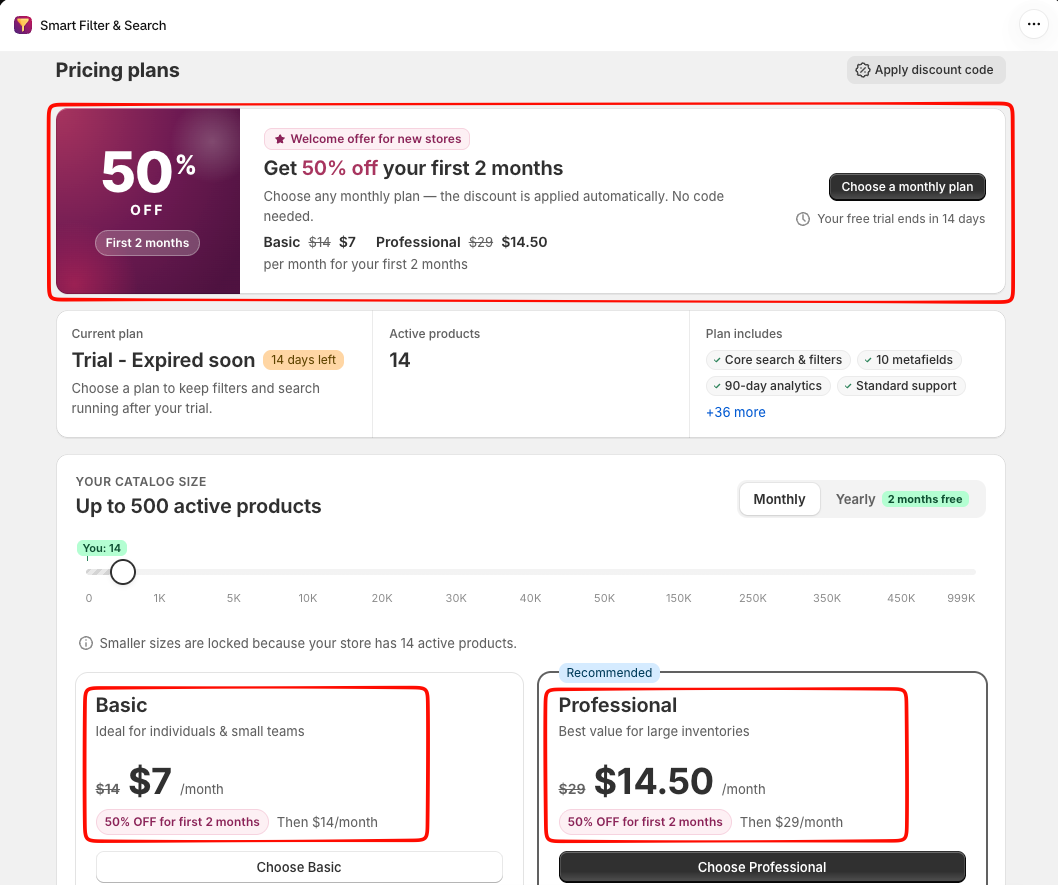
The welcome offer. Our pricing screen showed a 50% off for the first 2 months offer for new stores on a monthly plan, applied automatically. That made Basic $7 and Professional $14.50 for those two months. The screen also showed a trial countdown and our store’s active product count, which set our size band.
No free plan for live stores. The listing’s free Development plan only covers development and affiliate stores, stores on a Shopify free trial, and partner test stores. A live store pays from day one after the trial. Globo’s docs say that if you don’t subscribe, the app stops and syncing stops, but your settings are kept.
Where the cost jumps. Basic stays cheap up to 2,500 products. After that, prices climb fast. Going from 2,500 to 5,000 products more than doubles Basic, from $29 to $69. At 50,000 products, Basic is $359 a month. Some low-star reviews come from large stores surprised by the price at their catalog size, so check your band before you commit.
For comparison, Searchanise, which Blinto reviewed earlier this month, also prices by product count and started at $19 a month billed monthly for up to 1,500 products. At small sizes the two apps are close. Here, the bigger question is whether you need Pro.
What Merchants Say
As of October 9, 2026, the app shows a 4.9-star rating from 2,378 reviews. About 94% are five stars, and about 3% are one to three stars.
The newest reviews are almost all five stars, and support is the main theme. Many merchants name a staff member who helped them, often by setting up or fixing the theme integration for them. Others mention handling large or complex catalogs, such as SKU and variant search, metafield filters, and several languages.
The low-star reviews show a few patterns worth knowing:
- Storefront outages: The most common complaint. Merchants report collection pages showing no products, filters disappearing, or search breaking, often on mobile. Several of these reviews are from 2026.
- Sync problems: Some merchants had to sync by hand after changing collections, or saw wrong stock or prices.
- Theme side effects: Some report layout problems after theme edits, or leftover code after uninstalling.
- Support hours: Some merchants in Europe and the US found it hard to get help on weekends, holidays, or outside the team’s working hours.
- Billing and price: A few large stores were surprised by the cost at their catalog size, and a few say they were charged after uninstalling.
We also found no public developer replies on the listing more recent than 2022, including on recent low-star reviews. That doesn’t mean issues go unanswered privately, but it gives a buyer less to go on.
We did not run into these problems, since we did not test the storefront. They are good reasons to test filters on mobile during the trial and to know how to reach support before a big sale.
What We Liked
- A lot on Basic: Filters, keyword rules, typo tolerance, Vehicle Finder, variants as separate products, and analytics are all on the entry plan.
- Flexible filter targets: One filter can cover all collections, all products, the search page, or automated collections, with exclusions.
- Plain-language settings: The search and general settings explain what each option does with real examples.
- Search field ranking: You choose which product fields search reads and drag them into priority order.
- Sensible visibility tools: Out-of-stock handling and tag-based hiding sit in one short settings page.
- Low starting price: $14 a month for up to 500 products, with a 50% welcome offer for new stores in our pricing screen.
What Could Be Better
- AI search can’t be tried on the trial: It needs Professional, and the toggle was locked during our trial.
- No free plan for live stores: The free plan is limited to development and test stores.
- Steep jumps for bigger catalogs: Prices rise fast past 2,500 products, and Shopify Plus stores pay more at small sizes.
- Reliability complaints: A recurring group of low-star reviews describe empty collection pages and missing filters.
- Support depends on office hours: Some merchants could not get help on weekends or outside the team’s working day.
- SKU search was off: Part-number stores need to switch it on themselves.
Who Smart Product Filter & Search Is Best For
The app suits small and mid-sized stores, from a few hundred to a few thousand products, that want detailed filters and solid keyword search without a big monthly bill. Basic covers what most of these stores need.
It is a particularly good fit for auto-parts and accessories stores. Vehicle Finder is included on Basic and takes a spreadsheet import, so you may not need a separate fitment app.
It also suits stores with messy catalog data. Group values, metafield filters, and tag-based hiding help tidy up what shoppers see without editing every product.
Who Should Consider an Alternative
Stores that mainly want AI search should know it needs Professional, and they may not be able to test it on the trial. If AI search is the reason you are shopping, compare apps that let you try it first.
Very large catalogs should price out their band carefully. The cost at tens of thousands of products is high, and some of the sharpest reviews come from stores at that size.
Stores with just a few products may not need a paid app at all. Shopify’s free Search & Discovery app covers basic filters.
And if you sell mostly during weekend or holiday peaks, think about support hours. Some merchants report waiting until the next working day for help.
Final Verdict
Smart Product Filter & Search gives small and mid-sized stores a lot for the money. The filter editor is flexible, the search settings are clear, and Basic includes features such as Vehicle Finder and variant splitting. The admin is easy to find your way around.
So, does a small store need Pro? For most, no. Basic’s keyword search, synonyms, and typo tolerance cover the common cases. Pro makes sense when shoppers search in their own words and your product titles don’t match, and when you’re willing to pay before you can test that.
Our advice: start the trial on Basic and turn on the SKU field if you sell parts or model numbers. Then check the filters on mobile collection pages, set sold-out items to show last, and confirm your catalog’s price band before the trial ends.
Frequently Asked Questions
Does Smart Product Filter & Search have a free plan?
Only for development stores, affiliate stores, stores on a Shopify free trial, and partner test stores. Live stores pay from $14 a month for up to 500 products after a 14-day free trial.
Who makes Smart Product Filter & Search?
Globo.io, which also makes Globo Mega Menu and PreOrder Globo. In the Shopify admin, the app appears as Smart Filter & Search.
Which plan includes AI search?
Professional. In our trial, the AI-powered search toggle was locked with a “Professional plan required” note.
Is Vehicle Finder included on Basic?
Yes. The listing places Year/Make/Model search on Basic. You upload a spreadsheet with one row per vehicle and a product ID, SKU, or variant ID.
How is the price calculated?
By active products published to your Online Store. Variants don’t count. Each size band has a Basic and a Professional price, and annual billing gives two months free.
Did Blinto test the filters and search on a live storefront?
No. We reviewed the admin settings, Vehicle Finder setup, analytics, and pricing on a development store. We did not test storefront output, search quality, AI search, speed, or support.