
Most Shopify stores reach the same point sooner or later. Collection pages need filters, the search bar needs some tuning, and product pages need a “you may also like” row. Paid search apps solve all three, but they add a monthly bill that a growing store may not need yet.
Shopify Search & Discovery is Shopify’s own answer, and it costs nothing. It covers filters, product boosts for search, product recommendations, and search and recommendation reports in one admin app. It launched on the Shopify App Store in July 2022 and is made by Shopify.
It also has a rating problem. As of October 14, 2026, the listing shows 2.7 stars from 509 reviews. Just over half of those are five stars, and one in five is a single star. So the question we wanted to answer is: is the free app still enough for a small store, or is it time to pay for a search app?
We went through each section of the app’s menu on a Shopify development store loaded with sample snowboard products. The filter and recommendation tools are simple and well organized. What we could not find was any place to manage search synonyms, and search quality is the main theme of recent low-star reviews.
Key Takeaways
- Free and built in: Filters, product boosts, recommendations, and basic reports cost nothing and live inside the Shopify admin.
- Filters are the strongest part: You can build filters from vendor, tags, product type, category, product options, and metafields, including metafields created by other apps.
- Hard limits are low: Shopify’s documentation caps a store at 25 filters and each product at 10 related and 10 complementary picks. Collections with more than 5,000 products show no filters.
- Little control over search itself: We found no synonyms page in the app’s menu or settings. Search control comes down to boosts, result types, and sold-out handling.
- AI search depends on your Shopify plan: Shopify’s semantic search only runs on Grow, Advanced, or Plus plans, and there is no setting for it in the app.
- Best fit: Small stores with simple catalogs whose theme supports Shopify filters. Stores that rely on search to sell should test a paid app.
Our Verdict
A sensible free starting point for filters and recommendations, but a weak tool for tuning search.
Search & Discovery does the basics without a monthly fee. The filter editor is clear, the settings page is short, and related products fill in on their own. For a store with a few hundred products and a theme that supports filters, that may be all you need.
The weak side is search control. We found no synonyms page in the app, so there is no obvious way to tell search that “sofa” and “couch” mean the same thing. Recent merchant reviews report less relevant results and missing synonym groups. Add the 25-filter cap and the 10-product recommendation cap, and larger or more complex stores will hit the walls quickly.
Install it first, because it’s free. If shoppers can’t find products by the words they actually type, a paid search app is the next step.
What Shopify Search & Discovery Offers
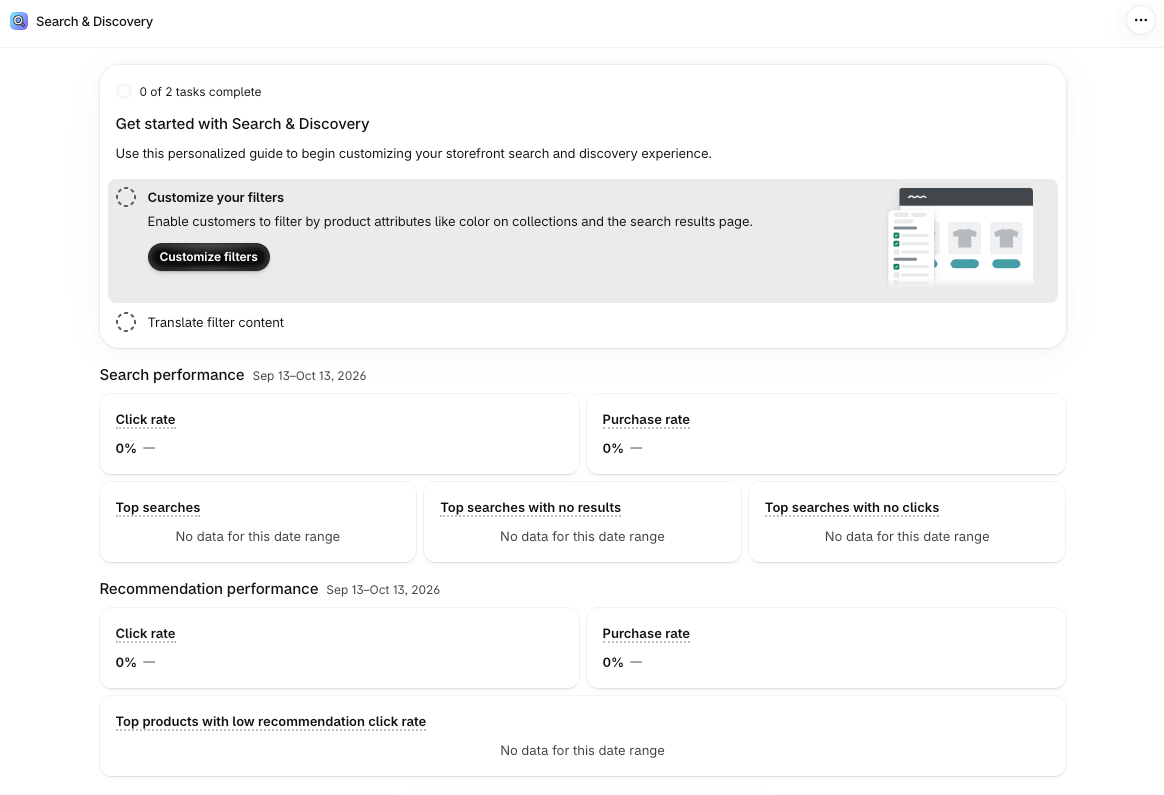
The app opens on a short guide with two tasks: Customize your filters and Translate filter content. Below the guide are two report panels for the last 30 days.
- Search performance shows click rate, purchase rate, top searches, top searches with no results, and top searches with no clicks.
- Recommendation performance shows click rate, purchase rate, and the top products with a low recommendation click rate.
The side menu has four sections: Filters, Product boosts, Recommendations, and Settings.
The listing places the app in two categories, search and filters, and upsell and cross-sell. It is free, with support provided by Shopify. Shopify’s documentation adds an important condition: filters only show on the storefront if your theme supports them.
What We Tested
We reviewed Shopify Search & Discovery in the admin of a Shopify development store with Shopify’s sample snowboard products. The app is free, so there was no plan or trial to choose.
We reviewed:
- the home page guide and the search and recommendation reports;
- the Filters list and the Add filter source picker;
- the Product boosts list;
- the Recommendations table for related and complementary products;
- the Settings page for empty filter values, search result types, predictive search, and out-of-stock products.
We did not check filters, search, or recommendations on the storefront. We did not create a product boost, build a custom filter, test search quality, check translations, or contact support. We could not confirm whether Shopify’s semantic search was active on our store. The store had no real shoppers, so every report showed zero.
So this review covers the admin tools, the documented limits, and merchant feedback. It makes no claims about search accuracy, speed, or sales impact.
Filters: Clear to Set Up, Capped at 25
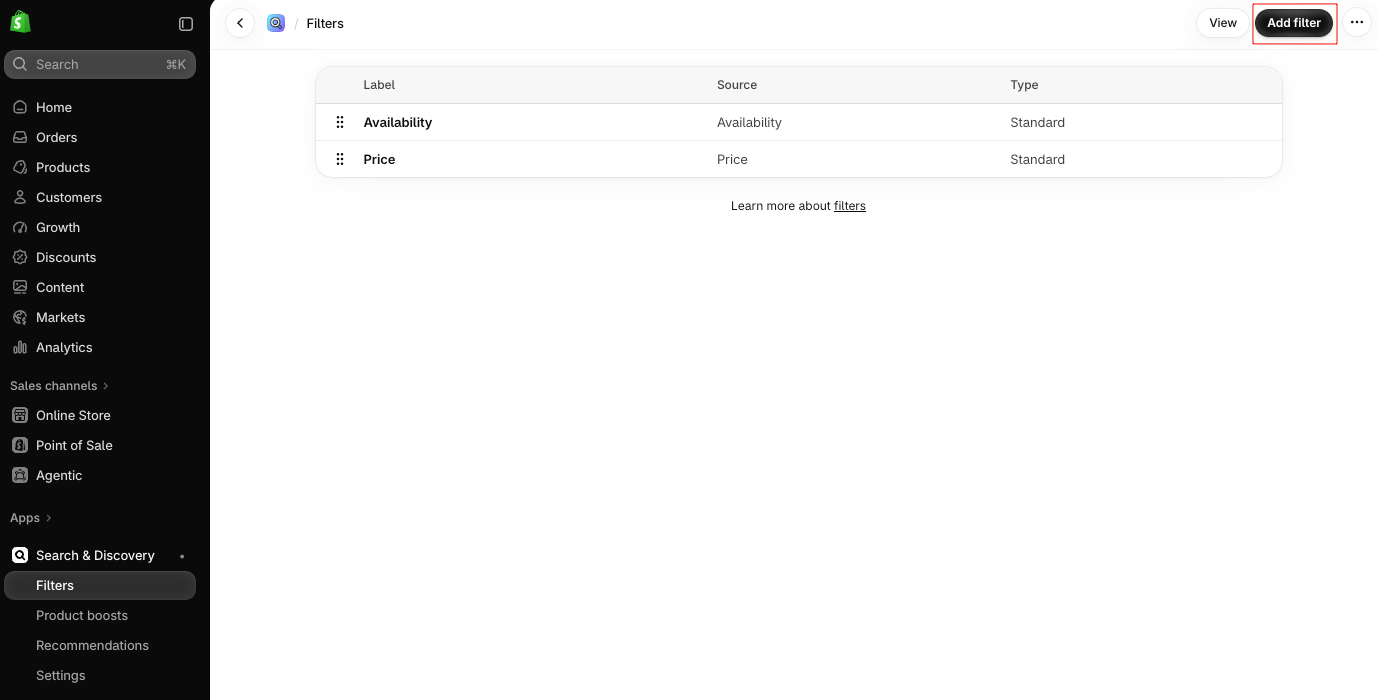
Our store started with two filters, Availability and Price. Each row has a drag handle, so you can change the order shoppers see. A View button and an Add filter button sit at the top.
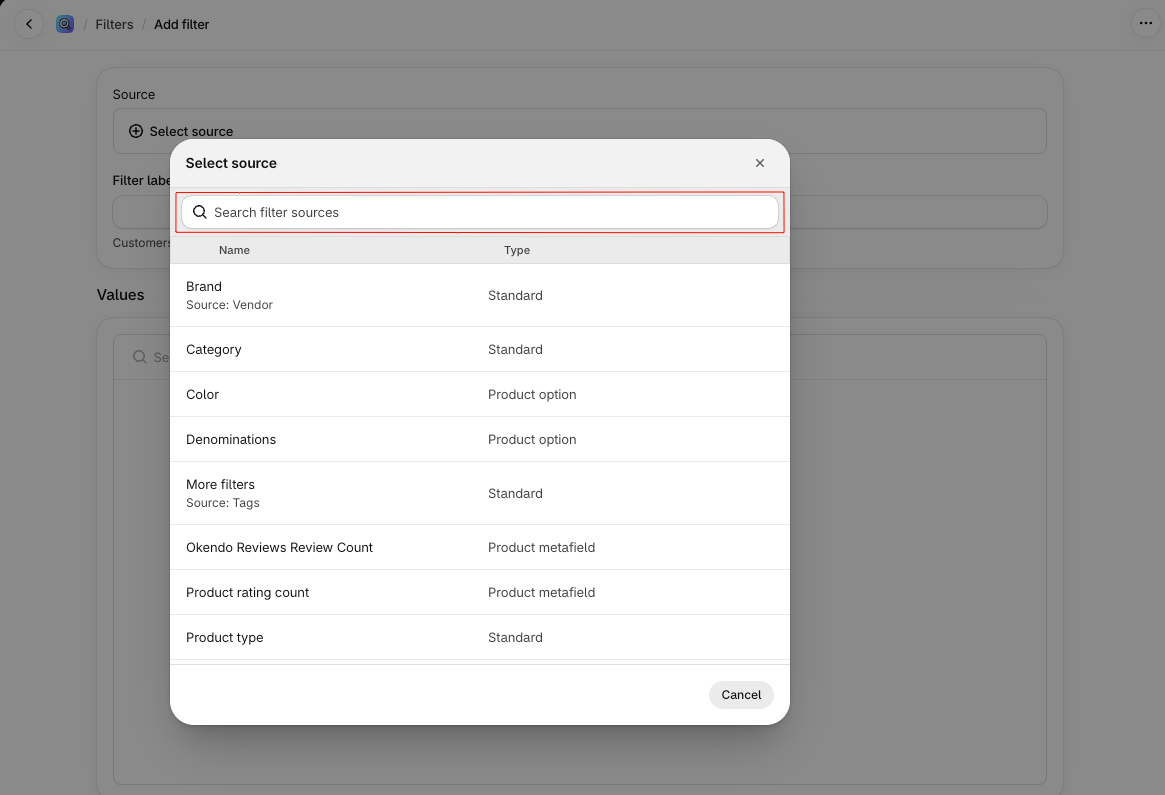
Adding a filter starts with Select source. This window lists every field you can filter by, with a search box at the top and a type next to each one:
- Standard sources such as Brand (from Vendor), Category, Product type, and More filters (from Tags).
- Product option sources such as Color and Denominations.
- Product metafield sources such as Okendo Reviews Review Count and Product rating count.
That last group is useful. Okendo Reviews Review Count is a field created by a reviews app, and it appeared in the list next to Shopify’s own sources. So data that other apps store on your products can become a filter. Shopify’s documentation also lists variant metafields, category metafields, and Shopify’s standard product attributes as sources. After you pick a source, you give the filter a label and choose its values.
Filter logic follows Shopify’s documented rules. Picking two values in the same filter widens results, and picking values in different filters narrows them. For tag and list-type metafield filters, you can switch this so products must match every value a shopper picks.
The limits matter more than the setup. Shopify’s documentation sets:
- 25 filters per store, and each source can be used only once.
- No filters on collections with more than 5,000 products.
- No filters on search results with more than 100,000 products.
- Up to 100 filter values shown on the storefront. Extra values are hidden.
Translation has gaps too. Vendor and tag values can’t be translated, and the price filter doesn’t appear for currencies other than the store’s default. The 25-filter cap is a recurring complaint in recent low-star reviews.
Settings: Short and Easy to Read
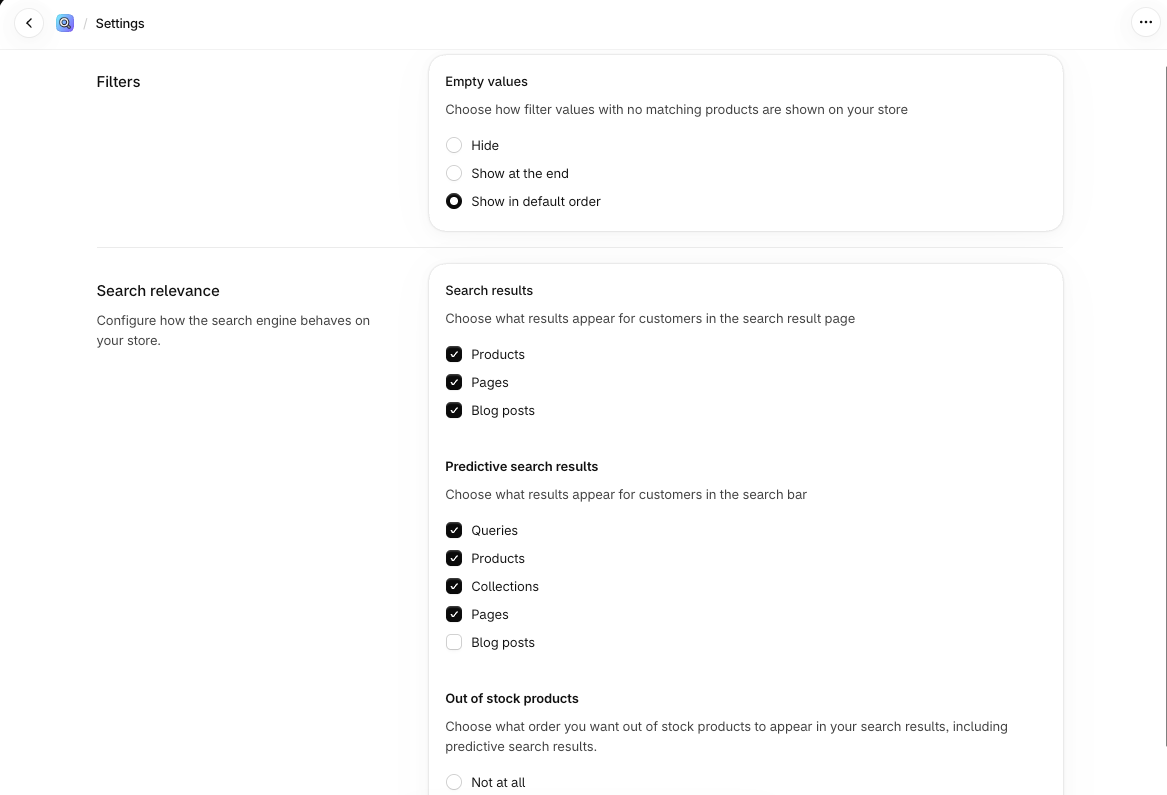
The Settings page has two parts.
Under Filters, the Empty values setting controls filter values that match no products. You can Hide them, Show at the end, or Show in default order, which was selected on our store. Hiding them is a sensible choice for most stores, since a value that returns nothing wastes a click.
Under Search relevance, you choose what each kind of search shows:
- Search results page: Products, Pages, and Blog posts were all on.
- Predictive search in the search bar: Queries, Products, Collections, and Pages were on. Blog posts were off.
- Out of stock products: where sold-out items appear in search and predictive search. Shopify’s documentation lists showing them, hiding them, or placing them last, and last is the default.
These settings are easy to follow. Shopify’s documentation notes that a theme can override the result types, so check the storefront after you change them.
Where It Falls Short: Little Control Over Search Results
The app’s menu has four entries: Filters, Product boosts, Recommendations, and Settings. There is no Synonyms section, and the part of the Settings page we reviewed has none either. Shopify’s current help page on changing search results doesn’t mention synonyms.
That matters because synonyms are the usual way to fix vocabulary gaps. If shoppers type “trainers” and your products say “sneakers”, synonyms connect the two. Without them, your fallback is to add the shopper’s words to product titles, tags, or boost terms yourself.
This is also where most recent complaints come from. Low-star reviews from mid-2026 onward report searches that return many unrelated products and part-number or SKU searches that got less accurate. Some merchants also report that synonym groups they had set up are gone. Several merchants say search worked well for them before. We did not test search quality, so we can’t confirm these reports, but they come up often.
Product boosts are the main search tool left. The Product boosts page lists every product with a Search terms column and a Create product boost button. Shopify’s documentation says each boost takes up to 10 search terms, and a boosted product only moves up when it is available to buy. Boosts can also be edited in bulk. They help you put the right product first for a known search, but they can’t teach search new words.
AI search sits outside the app’s control. Shopify’s documentation describes semantic search that reads related words, product descriptions, and image data. It turns on automatically for stores on the Grow, Advanced, or Plus plan with fewer than 200,000 products. It doesn’t apply to predictive search or Japanese-language stores, and there is no setting for it in the app. Stores on the Basic plan don’t get it.
Recommendations: Related Products Fill In, Complementary Ones Don’t
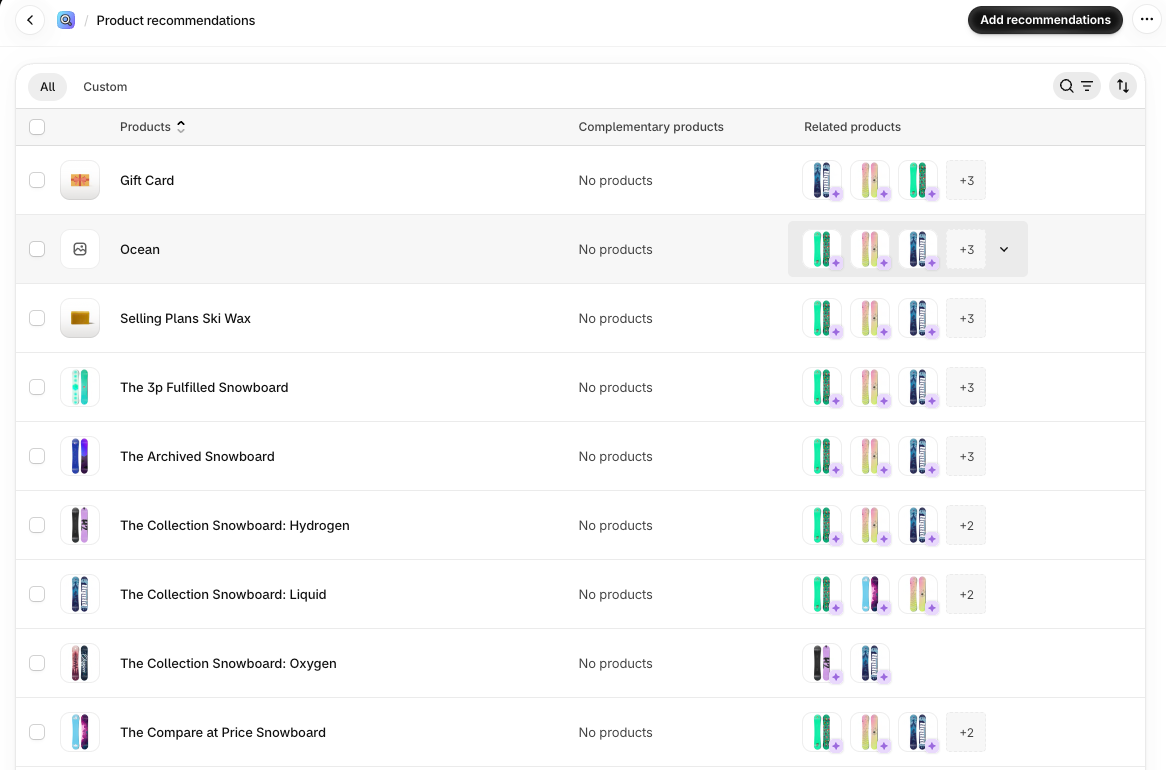
The Recommendations page is a table of every product, with two columns:
- Related products are similar items that a shopper might buy instead. Every product we could see already had related picks listed.
- Complementary products are add-ons bought alongside the product. This column read No products on every row we saw.
That difference is useful to know before you start. Related products work with no effort. Shopify’s documentation says they come from purchase history, then product descriptions (English storefronts only), then shared collections. Complementary products need you to choose them with Add recommendations, and your theme needs a complementary products block on the product page.
You can’t edit the automatic picks, but you can add your own, show only your own, or hide the automatic ones for a product. Shopify’s documentation caps manual picks at 10 related and 10 complementary products per product. A recent merchant review calls out that cap for accessory-heavy products, and it’s a real limit if one item has many add-ons.
The reports on the home page track recommendation click rate and purchase rate, so you can see whether these rows earn their place. Shopify’s documentation says the search reports only count the search results page, not predictive search in the search bar.
Pricing and Value
Shopify Search & Discovery is free. There are no paid plans or trials.
The cost shows up elsewhere. Semantic search depends on your Shopify plan, not the app, so a store on Basic won’t get it by installing anything. And when a store outgrows the 25-filter cap, the 5,000-product collection limit, or the lack of synonyms, the next step is a paid third-party app.
For a small store, the value is clear. You get working filters, related products, and a basic view of what shoppers search for, at no cost. The value drops as your catalog, filter list, or search problems grow.
What We Liked
- Free and first-party: No subscription, and it sits inside the Shopify admin next to your products.
- Clear filter picker: One searchable list shows every source with its type, from vendor and tags to product options and metafields.
- Works with other apps’ data: A reviews app’s review-count metafield showed up as a filter source on our store.
- Automatic related products: Every product we could see already had related picks, which Shopify generates on its own.
- Plain settings: Empty filter values, result types, and sold-out handling sit on one short page.
- Useful failure reports: Searches with no results and searches with no clicks show where shoppers get stuck.
What Could Be Better
- No synonyms page: We found nowhere in the app’s menu or settings to map one word to another.
- Search quality complaints: Recent low-star reviews report unrelated results and weaker SKU matching since mid-2026.
- Low filter cap: 25 filters per store, and none on collections over 5,000 products.
- 10-product recommendation cap: Each product takes up to 10 manual related and 10 complementary picks.
- AI search is tied to your Shopify plan: Basic-plan stores don’t get semantic search.
- Theme-dependent: Filters and complementary products only show when the theme supports them.
- Translation gaps: Vendor and tag filter values can’t be translated, and the price filter is hidden for non-default currencies.
Who Shopify Search & Discovery Is Best For
The app suits small stores with simple catalogs: a few hundred products, a handful of filters such as price, availability, size, and color, and a theme that supports Shopify filters. It covers the basics without a bill.
It also suits stores that want related products without setup. The automatic related picks fill in on their own, and you can add complementary products for your best sellers later.
And it’s a good first step before buying anything. Run it for a while, then check the searches with no results. If that list stays short, you may not need a paid app.
Who Should Consider an Alternative
Stores whose shoppers search in their own words need a way to map terms. Paid apps such as Searchanise Search & Filter and Smart Product Filter & Search have their own synonyms pages. Boost AI Search & Filter is another option for stores where search is a real sales problem.
Stores that sell parts, spares, or technical products can run past 25 filters and depend on SKU search. The filter cap is fixed, and recent reviews report weaker SKU matching.
Large catalogs should check collection sizes first. Any collection over 5,000 products shows no filters at all.
Stores on Shopify’s Basic plan that want AI-style search will not get it from this app.
Final Verdict
Shopify Search & Discovery is still worth installing, because it costs nothing and does the basics well. The filter picker is clear, it reads data from other apps, and related products fill in automatically.
So, is it enough? For a small store with a simple catalog, yes, at least to start. For stores that need to shape search results, the missing synonyms page, the 25-filter cap, and recent complaints about search relevance are good reasons to test a paid app.
Our advice: install it, set empty filter values to hide, and add complementary products for your best sellers. Then check the searches with no results after a few weeks. If shoppers keep searching for things you sell but can’t find, try a paid search app.
Frequently Asked Questions
Is Shopify Search & Discovery free?
Yes. The app is free and made by Shopify. Some search features depend on your Shopify plan rather than the app.
Does Search & Discovery have synonyms?
We found no synonyms section in the app’s menu or settings, and Shopify’s current help page on changing search results doesn’t mention them. Some merchants report that synonym groups they had set up are gone.
How many filters can I add?
Up to 25 per store, and each source can be used once. Collections with more than 5,000 products show no filters.
Does it include AI search?
Shopify’s semantic search runs automatically on Grow, Advanced, and Plus plans for stores with fewer than 200,000 products. There is no setting for it in the app, and it doesn’t apply to predictive search.
Why don’t my filters show on my store?
Shopify’s documentation says your theme must support filters. If it doesn’t, the filters exist in the app but don’t appear on the storefront.
Did Blinto test search results on a live storefront?
No. We reviewed the admin on a development store. We did not test storefront filters, search quality, semantic search, boosts, recommendations on product pages, or support.