
A shopper types “notebook” into your search bar, but your products are called “laptops”. Nothing comes back, and they leave. Or they open a collection of 300 products with no way to narrow it by color or price. Both problems cost sales, and they get worse as a catalog grows.
RS: AI Search Bar & Filter, made by Rapid Search, is built to fix both. It replaces the store’s search with its own instant search and adds filters to search results and collection pages. Inside the Shopify admin it shows up as Rapid Search Bar & Filter. It launched on the Shopify App Store in June 2020, carries the Built for Shopify badge, and holds a 4.9 rating from 412 reviews as of October 14, 2026.
What sets it apart is how it charges. Smart Product Filter & Search and Searchanise, two filter apps Blinto has reviewed, price by how many products you sell. Rapid Search prices by monthly sessions, which means store visits. Every plan, including Free, has the same features. So the question we wanted to answer is: is paying by traffic a good deal for your store, and what happens when your traffic outgrows the plan?
We installed the app on a Shopify development store running the Dawn theme. We went through onboarding, let the store data sync, and reviewed the settings, statistics, subscription, and help screens. Setup was quick and the settings are easy to find. The catch is the session cap.
Key Takeaways
- Same features on every plan: Free and paid plans include the full feature set. You pay for traffic, not for features.
- Big catalogs, low traffic do well: Paid plans cover up to 100,000 products. A store with many products but modest traffic can stay on a low tier.
- The session cap is the main risk: If a store passes its monthly session limit and doesn’t upgrade, search goes back to Shopify’s built-in search until the next billing cycle.
- Fast, guided setup: A three-step onboarding lets you pick a theme and choose which parts of the app to turn on before you see any settings.
- Collection filters need switching on: On our setup screen, collection page filters were off while search results filters were on. You turn them on per theme.
- Best fit: Small and mid-sized stores with steady, predictable traffic, especially those with large catalogs.
Our Verdict
Recommended for stores with predictable traffic. Watch your session count closely if your traffic spikes.
RS: AI Search Bar & Filter makes a good first impression. The onboarding is short. The Settings page lays out nine clear areas, from filters and synonyms to merchandising rules and custom CSS. A free plan with the full feature set makes it easy to try on a small store.
The trade-off comes from the pricing model. Because you pay by sessions, a big sale or a viral post can push you past your limit. When that happens and you don’t upgrade, the app’s search switches back to Shopify’s own search until your limit resets. Several low-star reviews describe exactly this.
If your traffic is steady and you can see roughly where it sits each month, the pricing is fair, and it gets better the larger your catalog is. If your traffic swings a lot, plan for a higher tier than your average month.
What RS: AI Search Bar & Filter Offers
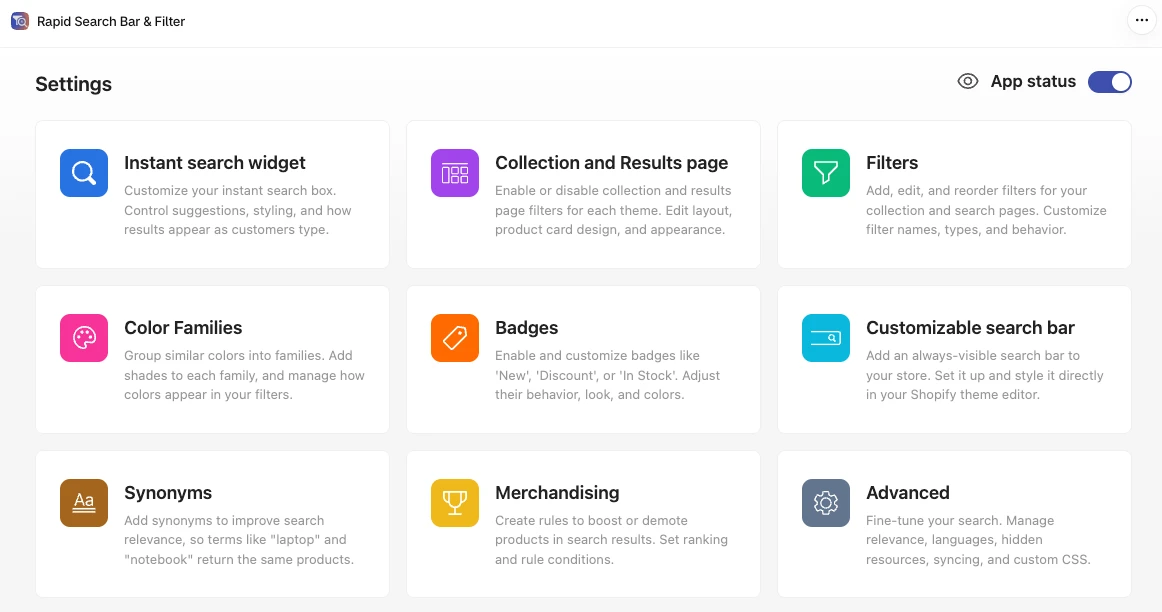
The app’s admin menu has six sections: Home, Statistics, Settings, Subscription, Help, and Feature requests. Most of the work happens in Settings, which is split into nine areas:
- Instant search widget: the search box that shows suggestions and results as shoppers type.
- Collection and Results page: filters, layout, and product card design for each theme.
- Filters: add, edit, rename, and reorder filters.
- Color Families: group similar shades, such as navy and sky blue, under one color in your filters.
- Badges: labels such as New, Discount, or In Stock.
- Customizable search bar: an always-visible search bar you set up in the Shopify theme editor.
- Synonyms: so searches like “laptop” and “notebook” return the same products.
- Merchandising: rules that push products up or down in search results.
- Advanced: relevance, languages, hidden products and collections, syncing, and custom CSS.
An App status switch sits at the top of the Settings page. It was on in our store.
The listing describes AI search that understands meaning, plus typo tolerance, SKU search, and predictive suggestions. It says the app goes live with no code and no theme edits. It also lists support for Shopify Markets, PageFly, OptiMonk, Printful, and International Pricing. Rapid Search’s help center has setup guides for translation apps including Langify, LangShop, Transcy, and ETranslate.
What We Tested
We installed RS: AI Search Bar & Filter on a Shopify development store running the Dawn theme.
We went through:
- the onboarding steps, including theme selection and feature choices;
- the store data sync on the Home page;
- the Settings overview;
- the Statistics page;
- the Subscription page and plan slider;
- the Help page and the public feature-request board.
We did not test the app on the storefront. We did not check search quality or AI search, build filters, add synonyms, create merchandising rules, set up badges, measure page speed, contact support, or subscribe to a paid plan. Our store had no real traffic, so the statistics showed zeros.
So this review covers setup, admin design, plan limits, and pricing. It makes no claims about search accuracy, storefront look, speed, or sales impact.
Setup: Three Short Steps
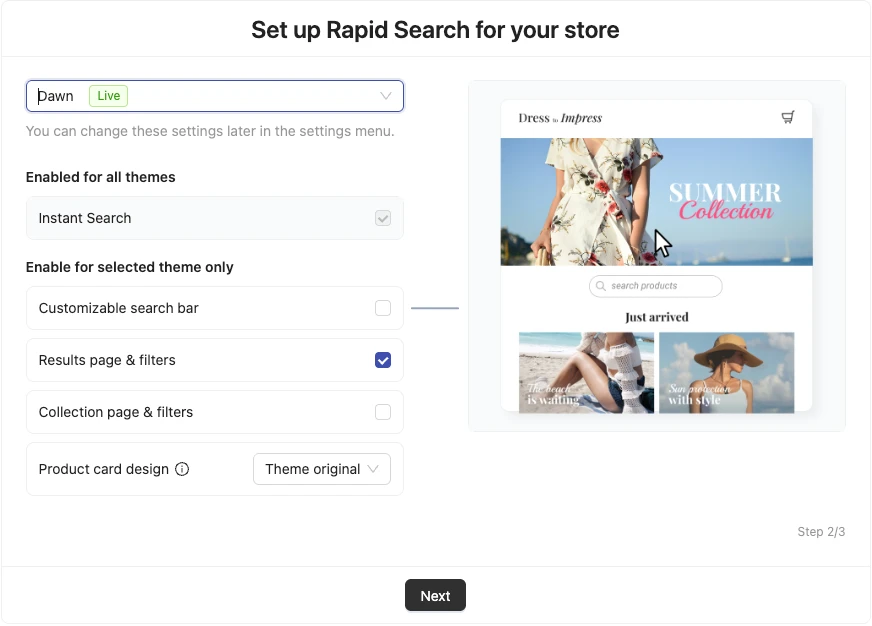
Onboarding has three steps. The first asks where you heard about the app. The second, shown above, is where the real choices happen.
You pick a theme from a dropdown, which marks your live theme with a green Live label. Then the screen splits features into two groups:
- Enabled for all themes: Instant Search. This box is ticked and greyed out, so instant search is always part of the app.
- Enable for selected theme only: Customizable search bar, Results page & filters, and Collection page & filters, each with its own checkbox.
On our Dawn setup, Results page & filters was ticked, and Collection page & filters and the Customizable search bar were not. A Product card design dropdown was set to Theme original, so product cards keep your theme’s look unless you change it. A note says you can change all of this later in Settings.
This matters more than it looks. Many merchants install a filter app mainly for collection pages. Rapid Search’s documentation confirms that collection page filters must be turned on by hand, for each theme, while search results filters turn on automatically. If you skip that checkbox, your collections won’t get the app’s filters.
The per-theme switches also let you try the results and collection pages on a draft theme first. Instant search is different. It is ticked for every theme, so it reaches your live store as soon as you finish setup.
After onboarding, the Home page showed the store data sync in three steps: downloading, processing, and finished. A See it in action button followed. Below it, an Optimize your search and discovery checklist listed five tasks: customize filters, set up collection and search results pages, configure instant search, set up synonyms, and configure badges. It’s a useful to-do list for a first session. Home also offers a 20-minute live demo with the team.
Statistics: Search Data You Can Act On
The Statistics page opens with Number of searches and Search revenue, followed by a Search composition chart. Below that are five tabs: All searches, Trending searches, No-result searches, Trending products, and Orders. The All searches table records the keyword, the keyword the shopper clicked, the date, and how many suggestions, collections, and products appeared, plus the device. There is an Export data button.
The No-result searches tab is the most useful one. It shows what shoppers looked for and didn’t find. Each term is either a product you could stock or a word you could add as a synonym.
Rapid Search’s documentation says search revenue is the value of orders placed in the same session as a search, and admin searches are left out of the search count. That is a generous way to count revenue. A shopper who searched once and then bought through a menu still counts. Treat the number as a sign that search is being used, not as proof that search caused the sale.
Our store had no traffic, so every number was zero. We can’t judge how accurate the figures are.
Where It Falls Short: The Session Cap and Slow-Moving Requests
The session cap. This is the trade-off that matters most. Each plan covers a set number of monthly sessions. Rapid Search says you get several warnings as you get close to the limit. If you pass it and don’t upgrade, search goes back to Shopify’s built-in search until the limit resets at your next charge.
The help center defines a session as a visit to your store. A session ends after a period of inactivity, and a new one starts when the visitor’s campaign source changes. So a shopper who clicks an email link and then an ad in the same visit can count as two sessions. You can see your session count on the Subscription page or in Shopify’s own analytics, though the two may differ slightly.
Low-star reviews return to this point again and again. Merchants describe search being paused mid-month after passing their limit, and some felt pushed to upgrade. Rapid Search replies to most of these reviews and points to its usage alerts. Either way, the lesson is the same: know your monthly sessions before you choose a tier, and leave some room.
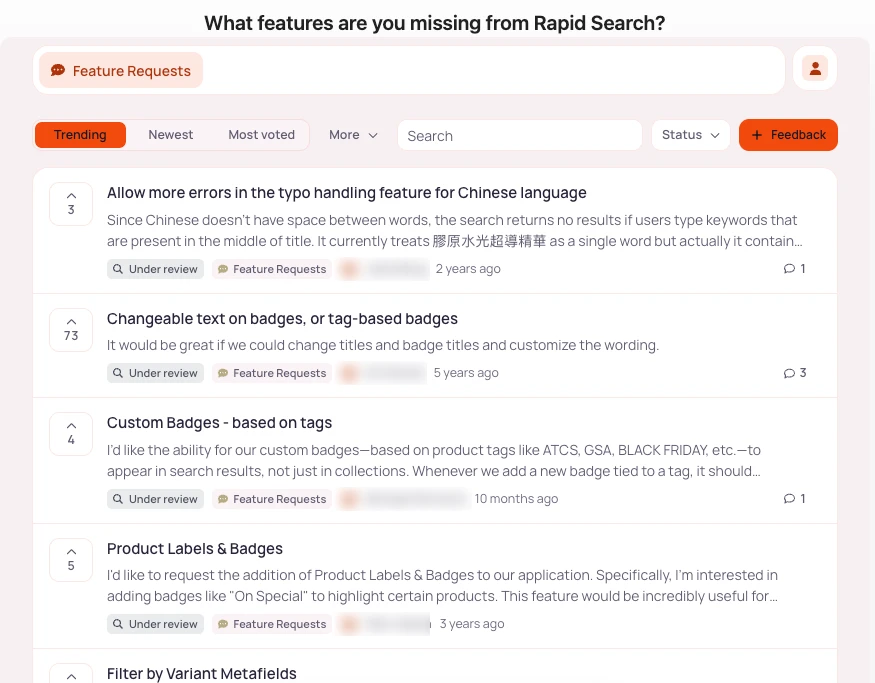
Slow-moving feature requests. The Feature requests page opens the app’s public request board, where merchants post ideas and vote. It’s a nice touch. It also shows how long some requests wait. When we looked, a request for changeable badge text or tag-based badges had 73 votes and was posted 5 years earlier. It was still marked Under review. So were requests for filtering by variant metafields, posted a year earlier, and better typo handling for Chinese searches.
If badges or variant-level filtering matter to your catalog, check what the app supports today rather than counting on these requests being built. The documentation lists metafield filters for single-line text, integer, and decimal metafields.
Theme conflicts. A smaller group of low-star reviews describe layout problems after install. These include collection descriptions disappearing, product grids looking different from the theme, and a menu overlapping on mobile. Most are from 2023 and 2024, but one from October 2026 reports broken pages. We did not test the storefront, so we can’t confirm these. They are a good reason to back up your theme before you install and to check your collection pages right after.
Search Controls: Synonyms, Merchandising, and Color Families
We did not configure these tools, but the Settings cards and Rapid Search’s documentation make it clear what each one does.
Synonyms fix the “laptop” and “notebook” problem. The No-result searches report tells you which words to add.
Merchandising rules let you move products up or down in search results. The documentation says you can pick products one by one, by tag, by collection, or by stock status, including pre-order items. A rule can apply when a search matches exactly or when it contains certain keywords. You can then send products to the front or back, boost them two or four times, or demote them by half. Rules can run all the time or only within a date range, which suits a seasonal push. They apply to search suggestions and search results.
Color Families group many shade names into one filter color. If your products use “navy”, “midnight”, and “cobalt”, shoppers can still filter by blue. The documentation says color filters can show as swatches or as a list. It also warns that variant option names are case-sensitive, so “Color” and “color” become two separate filters. You fix that in Shopify, not in the app.
Pricing and Value
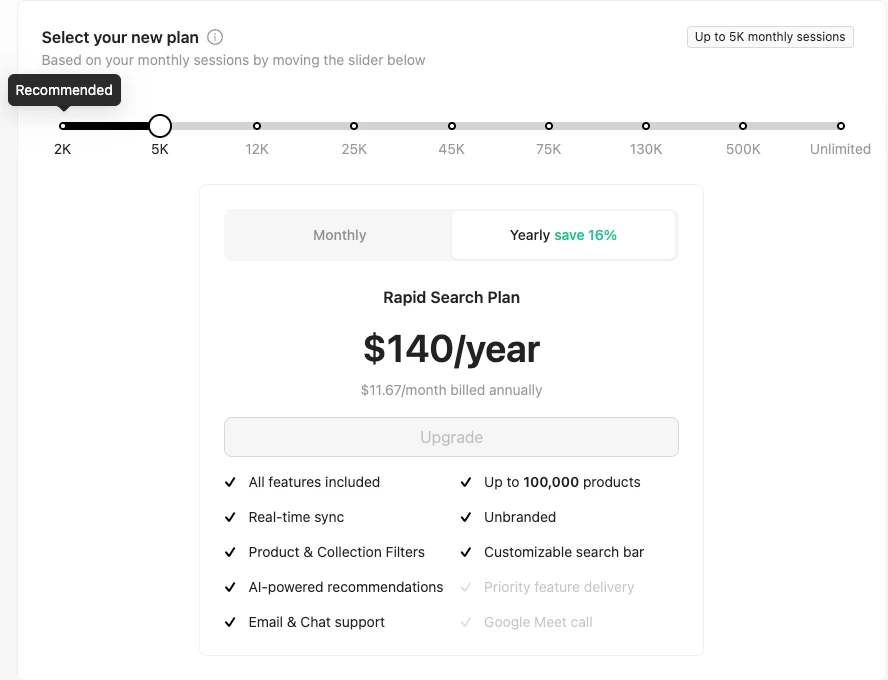
RS: AI Search Bar & Filter charges by monthly sessions, not by product count or features. Here is what the Shopify App Store listing showed on October 14, 2026:
| Plan | Monthly sessions | Products | Price |
|---|---|---|---|
| Free | 2,000 | 5,000 | $0, branded, email support |
| Basic 1 | 5,000 | 100,000 | $14/month or $140/year |
| Basic 2 | 12,000 | 100,000 | $27/month or $270/year |
| Basic 3 | 25,000 | 100,000 | $39/month or $390/year |
Paid plans remove the app’s branding, add chat support, and come with a 14-day free trial. Rapid Search’s pricing page says the trial doesn’t need a credit card.
Higher tiers are in the app. The in-app slider goes past the listing, with stops at 45K, 75K, 130K, 500K, and Unlimited sessions. The listing doesn’t show those prices, so check them in the app before you commit if your traffic is high.
What the 5K tier includes. Our Subscription page showed Basic 1 at $140 a year, or $11.67 a month billed annually. That’s $28 less than paying $14 a month for twelve months. The plan card listed all features, up to 100,000 products, real-time sync, product and collection filters, the customizable search bar, AI-powered recommendations, unbranded results, and email and chat support. Priority feature delivery and a Google Meet call were greyed out at that tier.
Where it’s a good deal. Paid plans cover up to 100,000 products whatever the tier. A store with 20,000 products and 4,000 visits a month can run on Basic 1 for $14.
For comparison, Smart Product Filter & Search, which Blinto reviewed earlier this month, prices by product count. Its Basic plan was $14 a month for up to 500 products and $119 a month for up to 10,000 when we checked on October 9. So for a large catalog with modest traffic, Rapid Search can cost far less. The model works against you the other way round: a small catalog with heavy traffic pays for every visit.
The free plan. Free covers 2,000 sessions and 5,000 products with all features, but shows the app’s branding. That’s enough for a new store to test the full app on real traffic.
What Merchants Say
As of October 14, 2026, the app shows a 4.9-star rating from 412 reviews. About 95% are five stars, and 15 are one to three stars.
The newest reviews are mostly five stars. Support comes up most, often for quick replies and for fixing problems fast. Merchants also mention easy setup, relevant results, and handling large catalogs.
The low-star reviews show a few patterns:
- Search paused at the session limit: The most common complaint. Merchants describe search switching off mid-month, and a few felt pressured to upgrade.
- Theme and layout conflicts: Collection descriptions vanishing, product grids changing the store’s look, and mobile menu problems.
- Missing features: Variant metafield filters and some sort options came up. The developer says some of these have since been added or are in progress.
- Price at higher tiers: One merchant noted that full pricing wasn’t visible on the listing and costs could get high for busy stores.
Rapid Search replies to nearly every low-star review, usually with an apology and an offer to look into the account.
What We Liked
- Every feature on every plan: You never hit a feature wall, even on Free.
- Short, clear onboarding: Three steps, with per-theme switches for the search bar, results page, and collection filters.
- Well-organized settings: Nine clearly labeled areas with plain descriptions of what each does.
- Useful search data: No-result searches, trending terms, and CSV export point straight to synonyms and stock gaps.
- Flexible merchandising: Boost, demote, and date-range rules cover seasonal pushes.
- Good value for big catalogs: Up to 100,000 products on every paid tier.
- Public roadmap: A feature-request board lets you see and vote on what other merchants want.
What Could Be Better
- Search stops at the session cap: Passing the limit without upgrading sends shoppers back to Shopify’s search until the next cycle.
- Sessions are hard to predict: Campaign changes start new sessions, and traffic spikes can push you over.
- Higher-tier prices aren’t on the listing: You need to check the in-app slider for tiers above 25K sessions.
- Collection filters are off until you turn them on: Easy to miss during setup.
- Long-waiting requests: Badge text and tag-based badges were still under review after five years.
- Some theme conflict reports: A minority of reviews describe layout changes after install.
Who RS: AI Search Bar & Filter Is Best For
The app suits stores with large catalogs and moderate traffic. Up to 100,000 products on a $14 plan is hard to beat if your visits stay under 5,000 a month.
It also suits new and small stores that want to try a full-featured search and filter app for free. The Free plan isn’t a cut-down version, so you see the real app on real traffic.
And it suits merchants who want to tune search themselves. Synonyms, merchandising rules, and no-result reports give you plenty of control without code.
Who Should Consider an Alternative
Stores with spiky or high traffic and small catalogs may find product-count pricing cheaper and more predictable. With that model, a busy sale month doesn’t bring you closer to a limit.
Stores that depend on custom badges or variant-level metafield filters should check those features carefully during the trial. Both have long-standing requests on the public board.
Stores that only need basic filters may not need a paid app at all. Shopify’s free Search & Discovery app covers simple filters, though Blinto found no synonyms tool in it.
Final Verdict
RS: AI Search Bar & Filter is easy to set up, well organized, and generous with features. Every plan gets everything, and paid plans cover up to 100,000 products.
So, is paying by traffic a good deal? For stores with steady traffic and a large catalog, yes. You get a lot of search for a small monthly price. For stores with big traffic swings, it’s riskier. Passing your session limit sends search back to Shopify’s default until the next billing cycle.
Our advice: check your monthly sessions in Shopify analytics first, then choose a tier with room to spare. During setup, tick Collection page & filters if you want filters on your collections, and test them on a draft theme first. Then check the No-result searches report after your first week.
Frequently Asked Questions
Is RS: AI Search Bar & Filter the same app as Rapid Search?
Yes. The Shopify App Store listing is called RS: AI Search Bar & Filter. Inside the Shopify admin, the app shows as Rapid Search Bar & Filter, and the developer is Rapid Search.
Does RS: AI Search Bar & Filter have a free plan?
Yes. The Free plan covers 2,000 monthly sessions and 5,000 products with all features. It shows the app’s branding and includes email support.
What happens if I go over my monthly sessions?
Rapid Search says it sends several warnings as you approach the limit. If you pass it and don’t upgrade, search switches back to Shopify’s built-in search until your limit resets at the next charge.
Are filters on collection pages turned on by default?
No. In our setup, search results filters were on and collection page filters were off. Rapid Search’s documentation says you turn collection filters on for each theme.
Do higher plans unlock more features?
No. Every plan, including Free, has all features. Paid plans add more sessions, up to 100,000 products, no branding, and chat support. Priority feature delivery and a Google Meet call were not included at the 5K tier we viewed.
Did Blinto test search results on a live storefront?
No. We reviewed onboarding, settings, statistics, the subscription page, and the help screens on a development store. We did not test storefront search, AI search, filters in action, speed, or support.