
Shopify variants handle size and color. They don’t handle a name to engrave, a file a shopper needs to upload, a delivery date, or a gift note. For that, you add a product options app.
King Product Options, Variants comes from YMQ, the team behind YMQ Product Options. It’s their free app, and it’s positioned as the entry point: most of the common option features at no cost, with an upgrade to the full YMQ app when you need more.
So the question I wanted to answer was simple: how much can you actually do in King Product Options before it asks you to switch? I went through the dashboard, built an option set, opened the field settings and pop-up editor, looked at the store-wide settings, and tried the targeting tabs to see where the upgrade wall appears.
Key Takeaways
- Main fit: Stores that need extra product fields, such as text, uploads, dates, swatches, and checkboxes, and want a free app to do it.
- Strongest point: A long list of option types and detailed per-field settings, including conditional logic, in a free app.
- Biggest limitation: Some features, including customer targeting, push you to switch to the paid YMQ Product Options app, and the storefront shows a “Powered by YMQ” line.
- Buying guidance: Start here if your needs are standard. If you already know you need advanced targeting, compare it with YMQ Product Options before you build.
Our Verdict
A generous free options app, as long as you understand it is the lighter edition of YMQ.
The option type list is long, the field settings go deeper than I expected for a free app, and the editor has a preview beside it. Merchant feedback is mostly positive, with support mentioned often.
The trade-off is clear in the app itself. When I tried a premium feature, a prompt explained that King Product Options covers most popular option features, and that the rest require moving to YMQ Product Options. The prompt says your data carries over, which takes some of the sting out, but it’s still a second app and a paid plan.
What King Product Options Offers
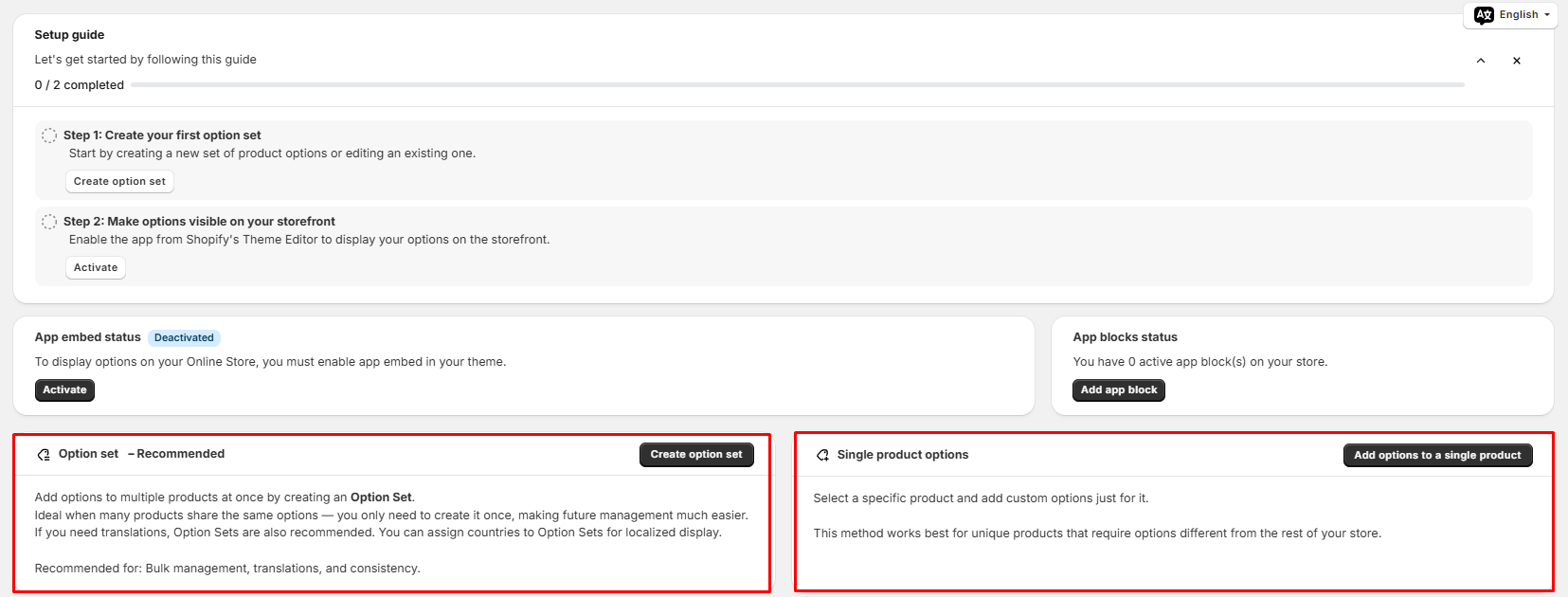
The dashboard opens with a two-step setup guide: create your first option set, then make the options visible on your storefront by enabling the app from Shopify’s theme editor. Below it, two status cards show whether the app embed is active and how many app blocks you have on your store, each with a button to fix it.
You get two ways to add options:
- Option set (recommended): create a set of options once and apply it to many products. The app recommends this for bulk management, translations, and consistency, and you can assign countries to option sets for localized display.
- Single product options: add options to one specific product, for items that need something different from the rest of your catalog.
There are also video tutorials on creating and publishing an option set and on conditional logic, an FAQ link, a chat button, and a language selector in the corner.
What We Tested
I went through the King Product Options admin on a store. I opened the dashboard, created an option set, browsed the option type list, opened the Basic Settings and Pop-up tabs for a single line text field, clicked through the Customers targeting tab, and reviewed the store-wide settings page. I also looked at the developer’s demo storefront.
I did not save and publish an option set on a live product, place a test order, test charging for an add-on at checkout, or contact support.
Option Types
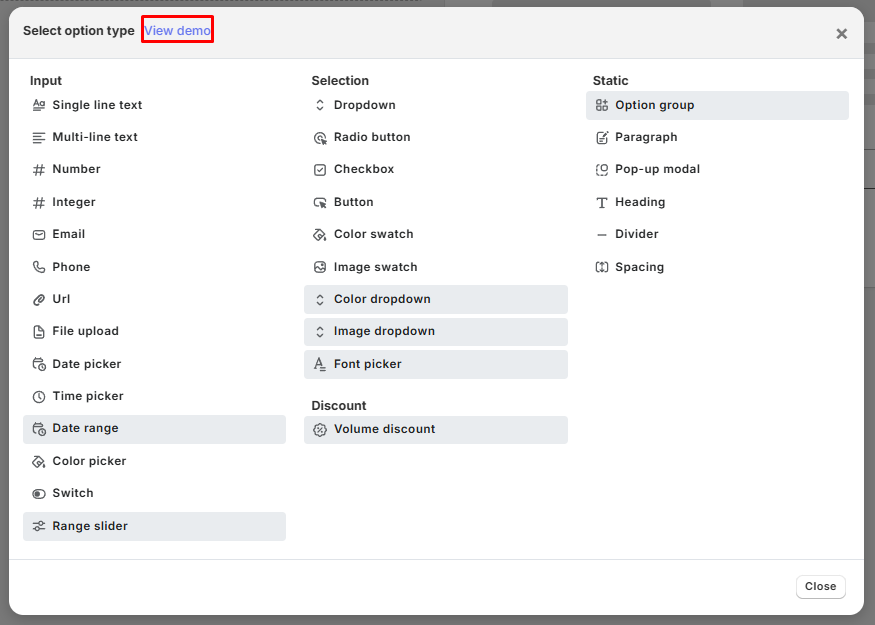
Clicking Add option opens a type picker grouped into four sections. This is the full list I saw:
- Input: single line text, multi-line text, number, integer, email, phone, URL, file upload, date picker, time picker, date range, color picker, switch, and range slider
- Selection: dropdown, radio button, checkbox, button, color swatch, image swatch, color dropdown, image dropdown, and font picker
- Static: option group, paragraph, pop-up modal, heading, divider, and spacing
- Discount: volume discount
A few of these, such as date range, range slider, the color and image dropdowns, font picker, option group, and volume discount, were shown highlighted in the list. I didn’t confirm whether every one of them is available without upgrading.
A View demo link opens a storefront showing these fields rendered on a product page, which is a useful way to see what shoppers will get before you build anything.
Field Settings and Conditional Logic
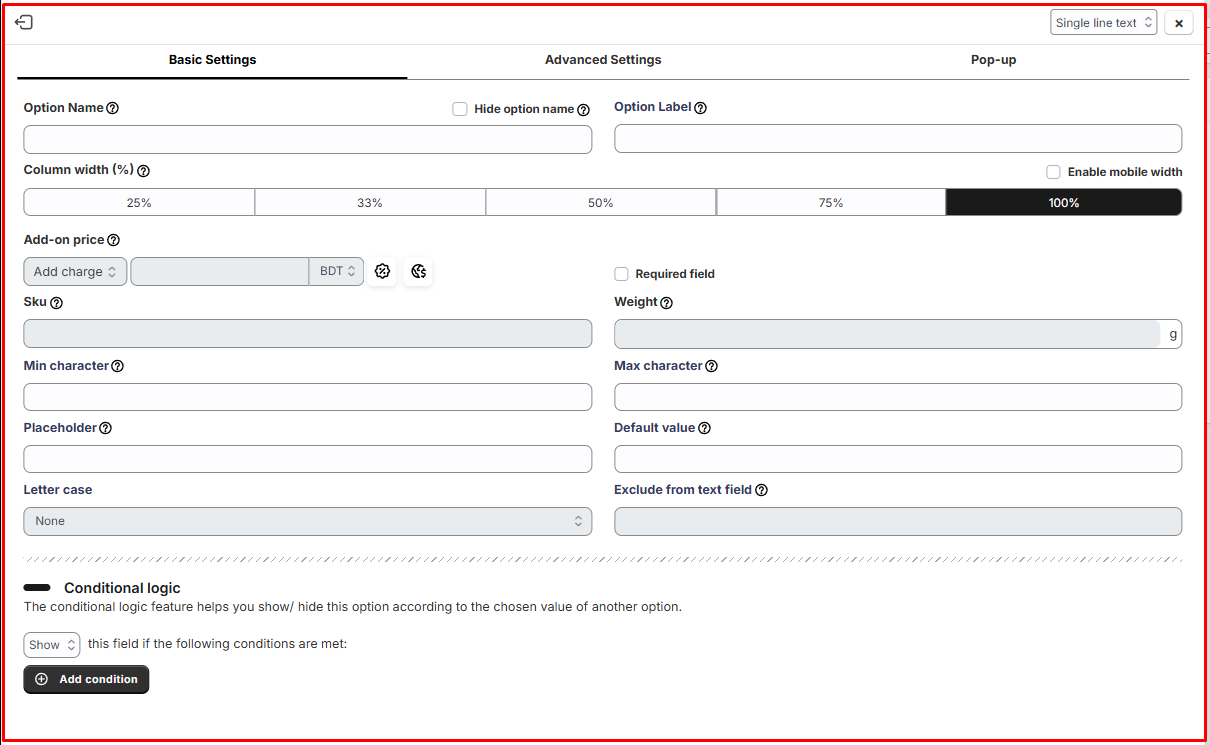
Each option has three tabs: Basic Settings, Advanced Settings, and Pop-up. For a single line text field, Basic Settings includes:
- Option name (with a hide option) and option label
- Column width from 25% to 100%, with a separate mobile width setting
- An add-on price field, plus SKU and weight
- A required field checkbox
- Minimum and maximum characters, placeholder, and default value
- Letter case and an “exclude from text field” setting
Below that is conditional logic: you choose to show or hide the field when conditions you add are met, based on the value chosen in another option. That’s the feature that keeps a long option set from overwhelming shoppers.
The Pop-up tab lets you attach extra content to an option, such as a size guide. You set a trigger image or trigger text, its color, a click action, a max width, and then write the content in a full rich text editor with images, video, tables, and code view.
A preview panel sits to the right while you edit, so you can see the field as you change it.
Store-Wide Settings
The settings page has tabs for Basic setting, Variant, Font files, Image swatch, Volume discount, SKU & weight, Checkout, and Other setting. Under Basic setting, you choose where the widget appears (for example, below product variants) and can turn on options such as:
- Show options on quick view and other pages
- Take over the add to cart button, hide the Buy it now button, or show a confirmation before adding to cart
- Update the product price based on selected options
- Allow deselection for single-choice options and hide option values disabled by conditions
- Show a quantity box, remember selected values, and lazy load option sets and CSS
That’s a lot of control over how the app behaves on your theme. It also means there are a lot of checkboxes to understand, which fits merchant comments that the app can feel fiddly at first.
Where It Falls Short
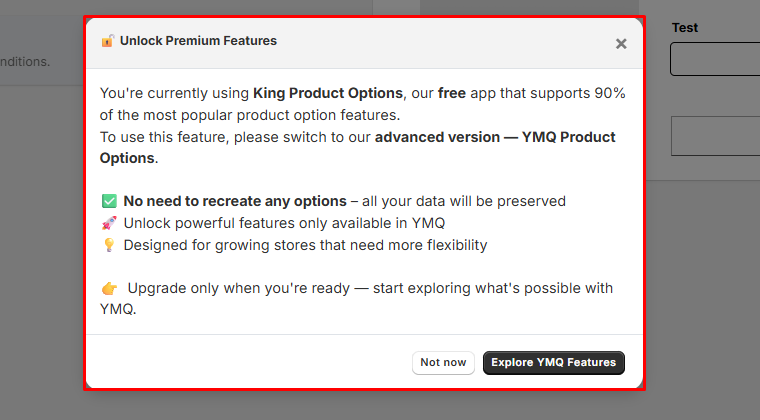
Some features mean switching apps. When I chose a customer targeting setting other than “All”, the app showed an Unlock Premium Features prompt. It says King Product Options is the free app covering most popular option features, and that this feature needs the advanced version, YMQ Product Options. The prompt promises you won’t need to recreate options, but upgrading here means moving to a different app, not just changing plan.
Branding on the storefront. The preview shows “Powered by YMQ” with a Remove branding link under the options.
A learning curve. There are many settings, both per field and store-wide. Some merchants describe the app as not very intuitive, and a few mention occasional glitches or tweaking needed, though most say support helped them sort it out.
Not every limit is obvious upfront. I only hit the upgrade prompt when I clicked a locked setting. It would help to see clearly which features are free before you start building.
What We Liked
- Free app with a long option type list: text, uploads, dates, swatches, dropdowns, and more.
- Detailed field settings: character limits, defaults, column widths, SKU, and weight.
- Conditional logic to show or hide fields based on other choices.
- Pop-up content per option, with a full rich text editor.
- Option sets for applying the same options across many products.
- Clear setup guide and status cards for the app embed and app blocks.
What Could Be Better
- Advanced features, such as customer targeting, require switching to YMQ Product Options.
- “Powered by YMQ” branding shows on the storefront.
- Many settings to learn before you feel confident.
- Free versus paid features aren’t clearly marked until you hit a prompt.
Who King Product Options Is Best For
It suits stores that need standard custom fields, such as personalization text, file uploads, date pickers, or swatches, and want to start without a monthly bill. It’s especially reasonable if you can live with simple targeting and some app branding.
Who Should Consider an Alternative
If you know you’ll need customer targeting or other advanced features from day one, consider going straight to YMQ Product Options rather than switching later. If you want to compare other free starting points, see our Aris Product Options and Globo Product Options reviews. For a paid-tier comparison, read our Hulk Product Options review.
Final Verdict
King Product Options gives you a lot for a free app: a long option type list, detailed field settings, conditional logic, and pop-up content per option. For many stores with standard needs, that’s enough.
Just go in knowing what it is. It’s the lighter edition of YMQ Product Options, and the more advanced features sit in that other app. Build your options here, check them on your theme, and move up only when a locked feature is something your store genuinely needs.
Frequently Asked Questions
Is King Product Options free?
Yes. The app describes itself as YMQ’s free product options app. Advanced features require switching to YMQ Product Options.
Does King Product Options support conditional logic?
Yes. Each option has a conditional logic section that lets you show or hide it based on the value chosen in another option.
Will I lose my options if I upgrade to YMQ Product Options?
The in-app upgrade prompt says your data will be preserved and you won’t need to recreate options. Check this with YMQ before switching.
Can I apply the same options to many products?
Yes. Option sets let you create options once and apply them to multiple products. You can also add options to a single product.