
Every store that ships orders gets the same question: “Where is my order?” A good tracking app answers it before the customer has to ask. It gives shoppers a page to check their parcel and sends them updates as it moves.
CWILL Order Tracking is one of the best-known apps for this job. Many merchants still know it as Parcel Panel, and the app still shows up as “CWILL (Parcel Panel)” in the Shopify admin. It has a near-perfect rating from more than 3,000 reviews and a Free plan.
The catch is in the plan size. The Free plan covers 20 orders a month. So we wanted to see how fast you can get tracking live, and what the Free plan actually gives you.
We installed CWILL Order Tracking on Blinto’s Shopify development store in October 2026. We completed the setup guide, added a tracking link to the store menu, and looked at the order list and analytics. Our store had no orders with real tracking numbers, so we did not track a live parcel.
Key Takeaways
- Quick setup: A four-step guide covers the tracking page, shipping notifications, dropshipping mode, and how syncing works. We finished all four in a few minutes.
- Tracking page on your own store: The app creates a branded tracking page at an address on your store’s domain. You can add it to your main or footer menu from inside the app.
- Clear order list: Shipments are sorted into tabs by status, such as In transit, Exception, and Failed attempt, with filters for carrier, location, and destination.
- Tracking numbers come from Shopify: The app reads them from each order in your Shopify admin. Orders without one stay at Pending.
- Small free allowance: Free covers 20 orders a month. Paid plans start at $11 a month for 200 orders, and extra orders cost $0.05 each on paid plans.
- The Free plan stops, it does not charge: CWILL says Free has no extra-order fees. Once the 20 credits are used, new orders stop syncing until the next month. A shopper looking up one of those orders will not find it.
- Past orders came in free: The setup guide says new users get the last 30 days of orders synced for free. Our four past orders showed up, and our quota still read 20 / 20.
- Our scope: We inspected setup and admin screens on the Free plan. We did not track a real parcel, send a notification, or view the live tracking page.
Our Verdict
CWILL Order Tracking makes the first steps easy. The setup guide is short, the tracking page is ready as soon as you install, and adding it to your store menu takes a couple of clicks. The order list and analytics are well laid out, even on Free.
The Free plan is a good way to try the app, but it is small. Twenty orders a month suits a very new store. Most stores that ship every day will need a paid plan, and shipping notifications start on paid plans, not on Free.
The biggest thing to know is what happens at the limit. On Free, the 21st new order of the month simply does not sync. The tracking page stays up, but a shopper with that order gets a “could not find order” result. To a customer, that can look like the store lost their parcel. On paid plans the risk flips: orders keep syncing, and each extra one costs $0.05.
Our verdict: CWILL is a strong choice if you want a tracking page running fast and expect to pay once orders grow. Use Free to set things up, not to run a store that ships daily. On a paid plan, set a spending limit for extra orders so the bill does not surprise you.
What CWILL Order Tracking Offers
CWILL INC makes the app. It launched on the Shopify App Store in January 2019, and it has the Built for Shopify badge. CWILL also makes popup, email, and product review apps for Shopify.
Inside the Shopify admin, the app menu has seven sections: Tracking page, Orders, Protection, Settings, Analytics, Integration, and Billing.
The main features listed for the app are:
- Order sync: Orders sync from Shopify in real time, and the app lists support for more than 1,600 carriers.
- Branded tracking page: A tracking page on your store’s own domain that you can customize.
- Shipping notifications: Automatic updates to customers when a parcel’s status changes, on paid plans.
- Dropshipping mode: A one-click setting that hides Chinese origin details from tracking.
- Upsells on the tracking page: Product picks and discount offers, on paid plans.
- Shipping protection and delivery dates: Listed on paid plans.
The listing names Klaviyo, Gorgias, Judge.me, PageFly, PayPal, and Shopify Flow among the tools it works with. We did not connect any of them.
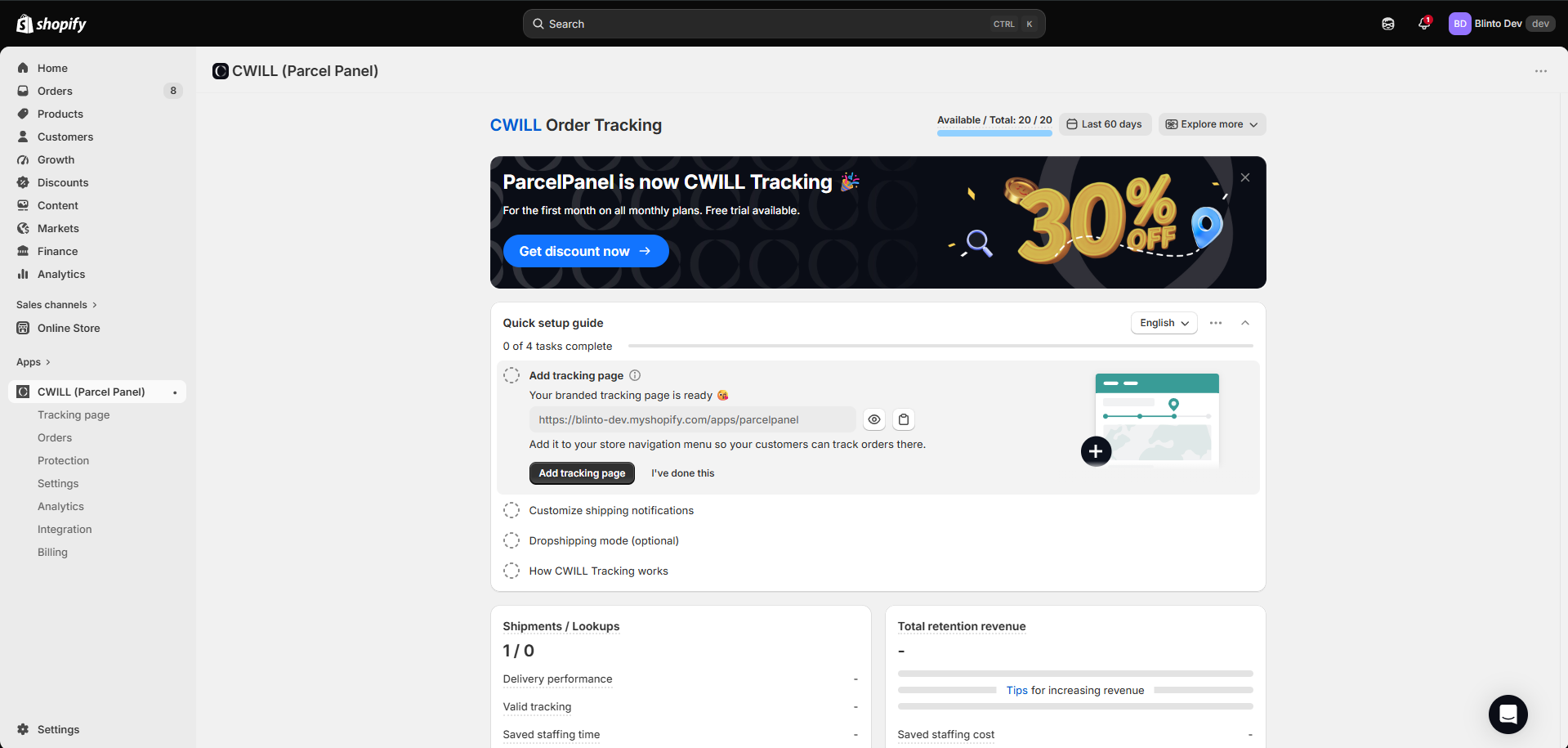
At the top of the dashboard, a banner says “ParcelPanel is now CWILL Tracking” and offers 30% off the first month on monthly plans. The top bar shows your quota, which read Available / Total: 20 / 20 on our Free plan.
What We Tested
We installed CWILL Order Tracking on Blinto Dev, the Shopify development store we use for testing. We stayed on the Free plan for the whole review.
We worked through:
- the four steps of the quick setup guide
- adding the tracking page to the store menu
- the Orders page, with its status tabs and filters
- the Analytics page
Our store had a few orders, but none had a tracking number. We did not track a real parcel, send or preview a shipping notification, open the tracking page editor, or view the tracking page on the storefront. We also did not try Protection, Integration, or a paid plan.
So we can judge setup, layout, and plan limits. We cannot judge tracking accuracy, update speed, email delivery, or whether the app cuts support tickets.
Setup: Four Steps, a Few Minutes
The home page opens with a Quick setup guide of four tasks. A language menu sits next to it, set to English.
Step 1: Add tracking page. The app tells you your branded tracking page is ready. It shows the page address, which sits on your store’s domain under /apps/parcelpanel. There are buttons to preview the page and copy the link.
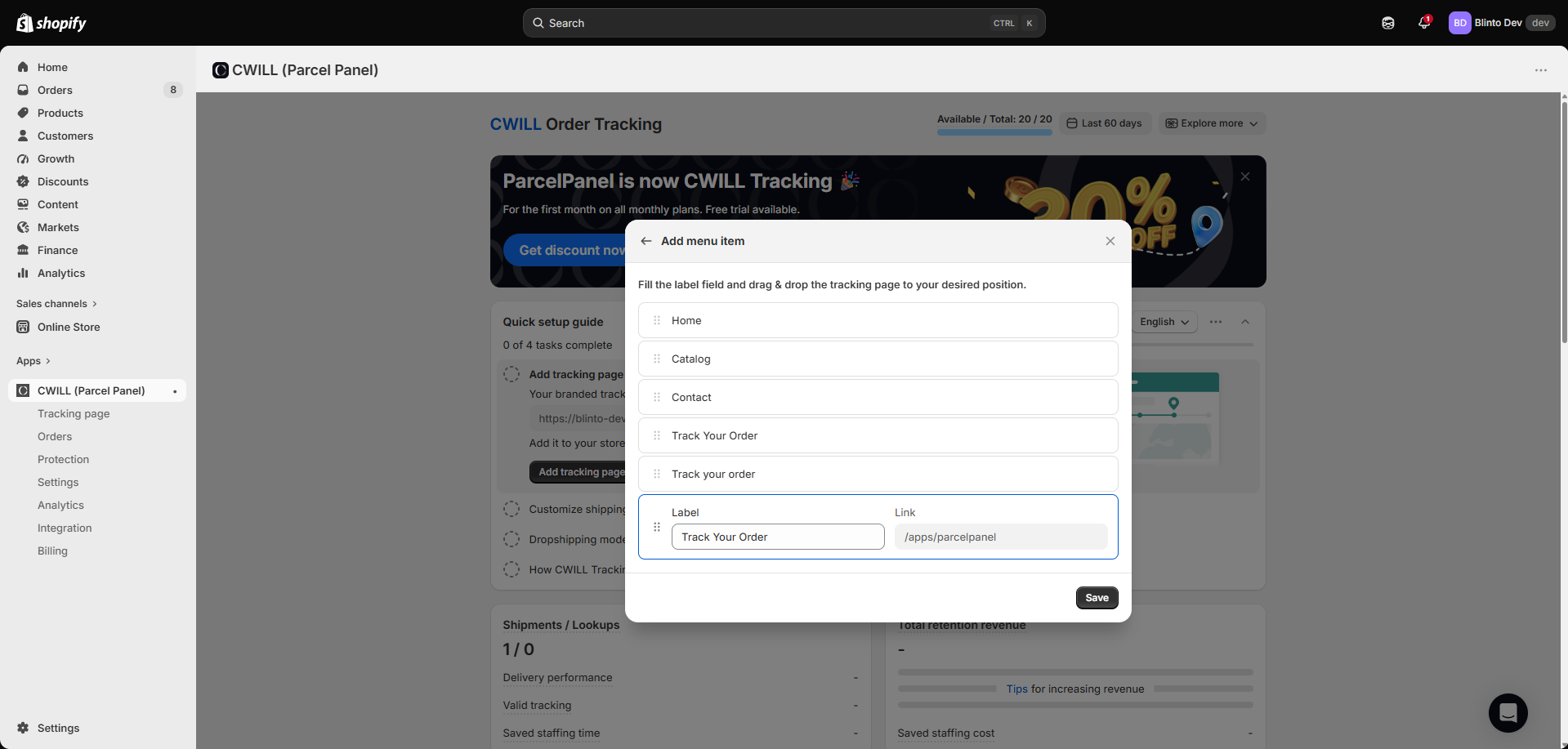
Clicking Add tracking page asks you to pick a published menu: Main menu or Footer menu. The next screen shows that menu’s items. You give the link a label, which defaults to “Track Your Order”, and drag it to the spot you want. Then you save. No theme code is needed.
One small thing to watch: our main menu already had two tracking links with almost the same name. The screen did not flag this. Check your menu so shoppers do not see the same link twice.
Step 2: Customize shipping notifications. This step explains that updates keep customers informed and can include marketing content. It links to the notification settings.
Step 3: Dropshipping mode. This step is marked optional. Dropshipping mode is included on the Free plan. CWILL’s help center says you turn it on under Settings, and it then changes the matching tracking page settings for you. It is meant to hide China-related details from what shoppers see. We completed the step but did not check the result on a real parcel.
Step 4: How CWILL Tracking works. This is the most useful step to read. It explains four points:
- For new users, the app syncs the last 30 days of orders for free.
- New orders sync in real time.
- The app uses tracking numbers to get updates from carriers.
- Tracking numbers come from the order details page in your Shopify admin, so you must add them there.
That last point matters. CWILL does not create tracking numbers. If you or your fulfillment partner do not add them to the Shopify order, the app has nothing to track.
We could see the free 30-day sync at work. While we went through the guide, the dashboard’s Shipments count rose from 1 to 4 as our past orders came in. The quota at the top of the page still read 20 / 20. As far as the quota display shows, importing those recent orders did not use any of our monthly credits.
Once all four tasks were done, the guide showed “All tasks complete” and asked us to leave a review.
Orders: Clear Status Tabs
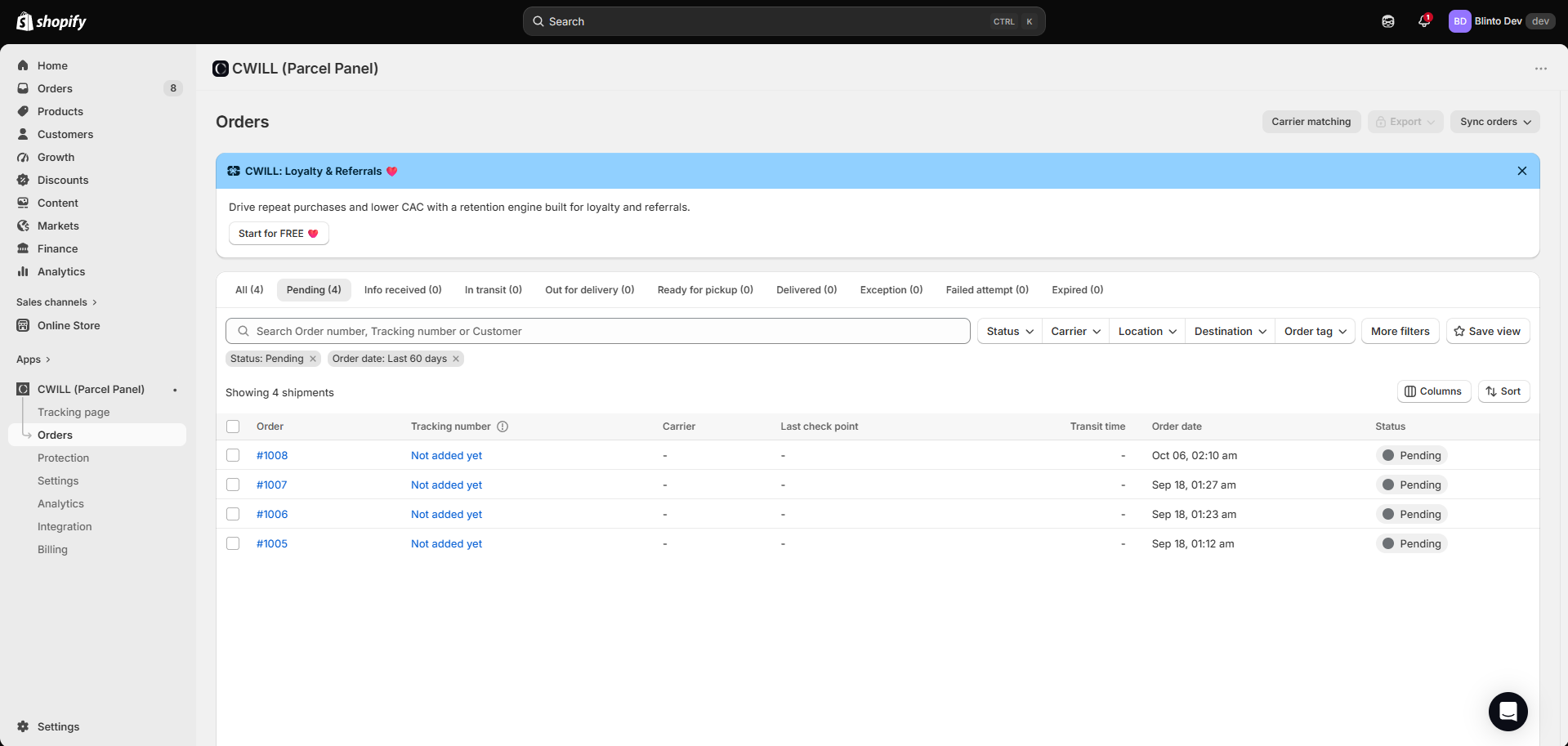
The Orders page lists each shipment with its order number, tracking number, carrier, last checkpoint, transit time, order date, and status.
Tabs across the top sort shipments by status: Pending, Info received, In transit, Out for delivery, Ready for pickup, Delivered, Exception, Failed attempt, and Expired. You can search by order number, tracking number, or customer. Filters cover status, carrier, location, destination, and order tag, and you can save a view.
The Exception and Failed attempt tabs are the ones a busy store will use most. They show the parcels that are likely to turn into support emails.
Our four orders all showed Pending with “Not added yet” for tracking, because none had a tracking number. This matches what the setup guide says. It is also a handy check after install. CWILL’s help center lists a missing tracking number as a common reason an order cannot be tracked, so look there first if real orders sit in Pending.
There are also buttons for Carrier matching and Sync orders. Export was locked on Free. The listing puts CSV and PDF export on the Professional plan.
The Orders page also showed a banner for CWILL’s loyalty and referrals app. You can close it, but it is one of several promotions in the admin.
Analytics: Useful Reports, Even on Free
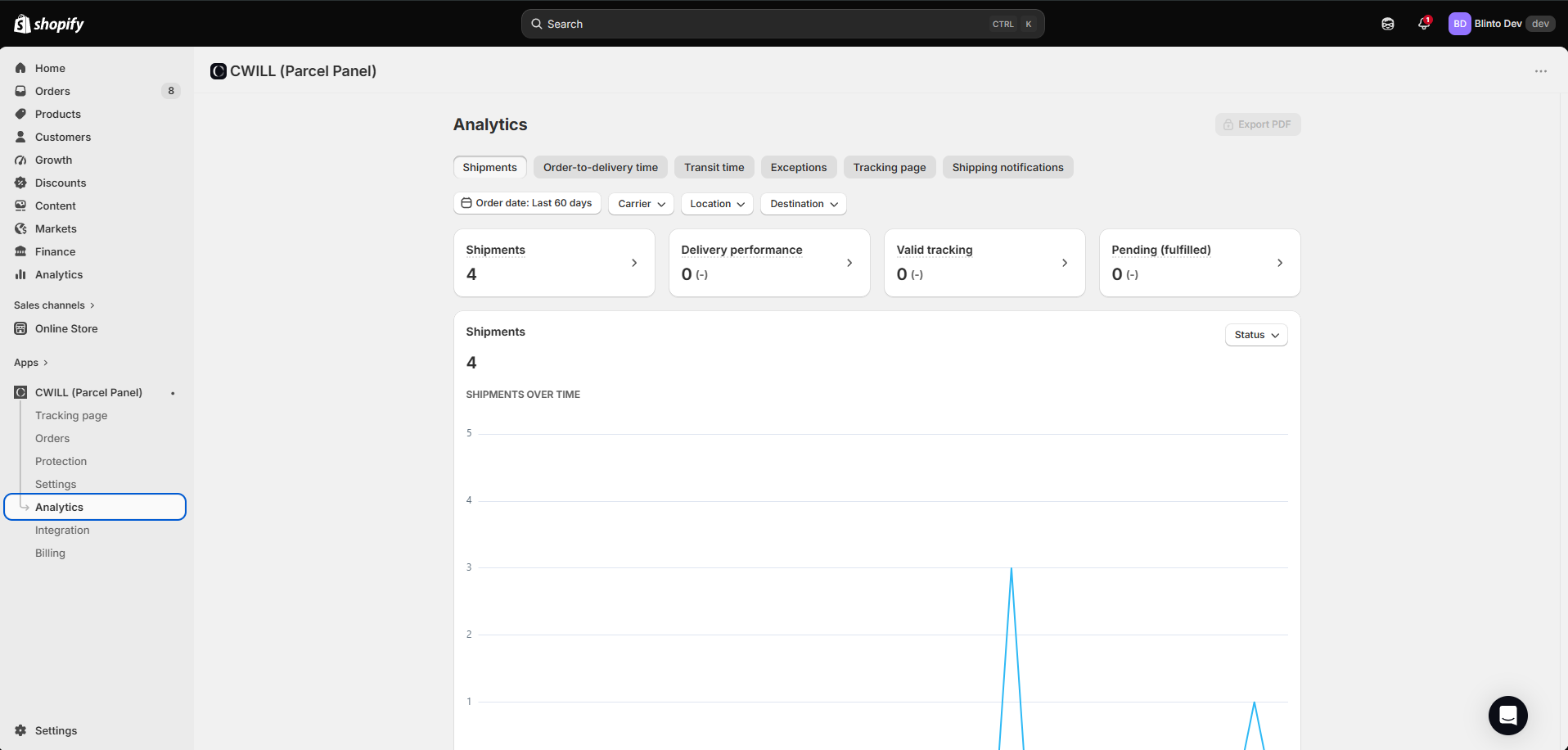
The Analytics page has six report tabs: Shipments, Order-to-delivery time, Transit time, Exceptions, Tracking page, and Shipping notifications. You can filter by order date, carrier, location, and destination.
The Shipments tab showed four summary cards: Shipments, Delivery performance, Valid tracking, and Pending (fulfilled). Below them is a shipments-over-time chart. Our store showed 4 shipments, with the other cards at zero.
The home dashboard adds cards for saved staffing time, total retention revenue, and saved staffing cost. These were empty for us, so we cannot say how useful they are with real data.
Export PDF was locked on Free. The listing says Free includes basic analytics and Essential adds advanced analytics.
Pricing and Value
CWILL charges by the number of orders it tracks each month. As of October 8, 2026, the Shopify App Store lists these plans:
| Plan | Price | Orders / month | Key additions (from the listing) |
|---|---|---|---|
| Free | $0 | 20 | 1,600+ carriers, real-time sync, branded tracking page, dropshipping mode, basic analytics |
| Essential | $11/month or $108/year | 200 | Shipping notifications, custom shipment status, delivery dates after purchase, AI product picks, shipping protection, discount upsells, advanced analytics |
| Professional | $59/month or $564/year | 2,000 | Auto-translated tracking details, CSV and PDF export, delivery dates before purchase, Klaviyo and PayPal integrations, API and webhooks, remove CWILL branding |
| Enterprise | $479/month or $4,548/year | 25,000 | Dedicated tracking channel, custom integrations, onboarding and customer success managers, priority support |
Each paid plan has a 7-day free trial. CWILL says no charges apply and no credits are used during the trial. The in-app banner also offered 30% off the first month on monthly plans.
How CWILL counts orders
CWILL calls its allowance “credits”, and its pricing page sets out the rules:
- One order uses one credit, even if it ships in several parcels.
- Customer lookups are free. Shoppers can check the tracking page as often as they like.
- Free has no extra charges. When the 20 credits run out, new orders stop syncing until the next month.
- Paid plans keep syncing. Each order over your allowance costs $0.05, and you can change the spending limit for these charges at any time.
- Upgrades apply at once. Downgrades wait until the current plan period ends.
Counting by order, not by parcel, is good news for stores that often split shipments.
What it costs at different sizes
Here is how the listed prices work out. These are simple sums, not results from our test.
| Orders a month | Essential ($11 + $0.05 per extra) | Professional ($59) |
|---|---|---|
| 150 | $11 | $59 |
| 300 | $16 | $59 |
| 1,000 | $51 | $59 |
| 1,200 | $61 | $59 |
So Essential stays the cheaper plan up to about 1,160 orders a month. Above that, Professional costs less and adds export, branding removal, and integrations. A store that sees one big sales spike a year may still be better off on Essential with a spending limit set.
Three things matter for budgeting:
- Free is small. Twenty orders a month is less than one order a day. It is enough to set up and test the app, not to run a busy store.
- Set a spending limit on paid plans. Extra orders are cheap one by one, but a large sale can add up. Some merchants were surprised by these charges, as we cover below.
- The gap between Essential and Professional is wide. Removing CWILL branding and the Klaviyo integration both need Professional, so the jump is about features as much as volume.
How CWILL Compares With 17TRACK and AfterShip
Blinto has also tested 17TRACK and AfterShip, two other popular tracking apps. Here is how their plans looked on the Shopify App Store when we checked each one in October 2026:
| CWILL | 17TRACK | AfterShip | |
|---|---|---|---|
| Free plan | 20 orders | 50 shipments | 50 shipments |
| First paid plan | $11 for 200 orders | $9 for 200 shipments | $11 for 100 shipments |
| Allowance measured in | Orders | Shipments | Shipments |
CWILL has the smallest free plan of the three. Its strengths show up once you pay. Its first paid plan covers twice as many as AfterShip’s, and extra orders cost $0.05 against AfterShip’s $0.08 per shipment. CWILL also counts an order split into several parcels only once.
If you want to stay free for as long as possible, 17TRACK and AfterShip give you more room. If you expect to pay anyway, CWILL’s Essential plan is good value for a store shipping a few hundred orders a month. Prices change often, so check each listing before you choose.
What Merchants Say
CWILL Order Tracking shows a 5.0-star rating from 3,171 reviews on the Shopify App Store, as of October 8, 2026. About 97% of ratings are five stars.
Most recent reviews praise fast, friendly support and easy setup, including for stores moving from another tracking app.
The small number of low ratings point to a few issues worth knowing:
- Billing: Some merchants were surprised by charges, either after a trial renewed or from extra-order fees. The developer says trials renew unless cancelled and has offered refunds or usage details in reply.
- Tracking delays: One merchant said updates lagged a few days behind the carrier. The developer said it looked into the case.
- Wrong links: One merchant saw incorrect tracking links on some orders. The developer said it fixed the sync issue.
- Switching help: A recent merchant moving from another tracking service found support answers unclear and left.
We did not run into these issues in our test. Still, they are good reasons to watch your quota and test with real orders during the trial.
What We Liked
- Fast setup: Four short steps, with clear help on how syncing works.
- Tracking page ready on install: It lives on your store’s domain and goes into your menu in a couple of clicks.
- Clear order list: Status tabs make late and failed parcels easy to find.
- Helpful analytics on Free: Six report tabs and carrier, location, and destination filters.
- Dropshipping mode on Free: Useful for stores that ship from overseas suppliers.
- Past orders included: The last 30 days of orders sync for free when you install.
What Could Be Better
- Free plan fails quietly: Once 20 credits are used, new orders stop syncing and shoppers cannot find them on the tracking page.
- Small free allowance: 20 orders a month is enough to test, not to grow.
- Notifications need a paid plan: The listing places shipping notifications on Essential and above.
- Extra-order fees: $0.05 per order over your plan can add up in a busy month.
- Big jump to Professional: Branding removal and Klaviyo need the $59 plan.
- No duplicate-link check: The menu tool let us add a tracking link next to two similar ones.
- Promotions in the admin: Banners for a discount and for CWILL’s other apps appear on several pages.
Who Is CWILL Order Tracking Best For?
CWILL is best for small and growing Shopify stores that want a branded tracking page running quickly. The setup guide and menu tool mean you do not need to touch your theme.
It also suits dropshipping stores, since dropshipping mode is included even on Free. And stores that already add tracking numbers to Shopify orders will find that the app picks them up with no extra work.
Who Should Consider an Alternative?
Stores that want shipping emails without paying should look elsewhere first. On CWILL, notifications start on Essential.
Stores that need an unbranded tracking page or a Klaviyo connection on a small budget should compare options. Both need Professional at $59 a month.
Stores with sharp sales spikes should check the extra-order fee before they commit. A plan that fits a normal month may not fit a busy one.
Final Recommendation
Start on Free and add the tracking page to your menu. Make sure your tracking numbers are added to Shopify orders, then watch a few real parcels move through the status tabs. When you outgrow 20 orders, or want shipping emails, try Essential on the 7-day trial. Set a spending limit for extra orders so a busy month does not catch you out.
Frequently Asked Questions
Is CWILL Order Tracking the same as Parcel Panel?
Yes. The app was called Parcel Panel and is now CWILL Order Tracking. In our Shopify admin it still appeared as “CWILL (Parcel Panel)”, and the tracking page address uses /apps/parcelpanel.
Is CWILL Order Tracking free?
Yes, there is a Free plan for 20 orders a month. It includes the branded tracking page, real-time order sync, dropshipping mode, and basic analytics. Paid plans start at $11 a month for 200 orders.
Does the Free plan send shipping notifications?
The Shopify listing places shipping notifications on Essential and above. The setup guide includes a notifications step on Free, but we did not send a notification in our test.
Where does CWILL get tracking numbers?
From the order details page in your Shopify admin. The app’s setup guide says you need to add tracking numbers there. Orders without one stay at Pending.
What happens if I go over my plan’s order limit?
It depends on the plan. On Free, there is no charge, but new orders stop syncing until your credits reset. On paid plans, orders keep syncing and each extra one costs $0.05, up to a spending limit you can change. We stayed within the Free quota and did not see either case in practice.
Did you test real tracking during the review?
No. Our development store had no orders with tracking numbers. We could not test tracking accuracy, status updates, notifications, or the live tracking page.